Add B-Roll to Video for Professional-Looking Cuts
Breathe new life into your videos by layering extra footage that sets the scene, covers jump cuts, or injects energy. Learn how to seamlessly add b-roll to video in minutes.
Get started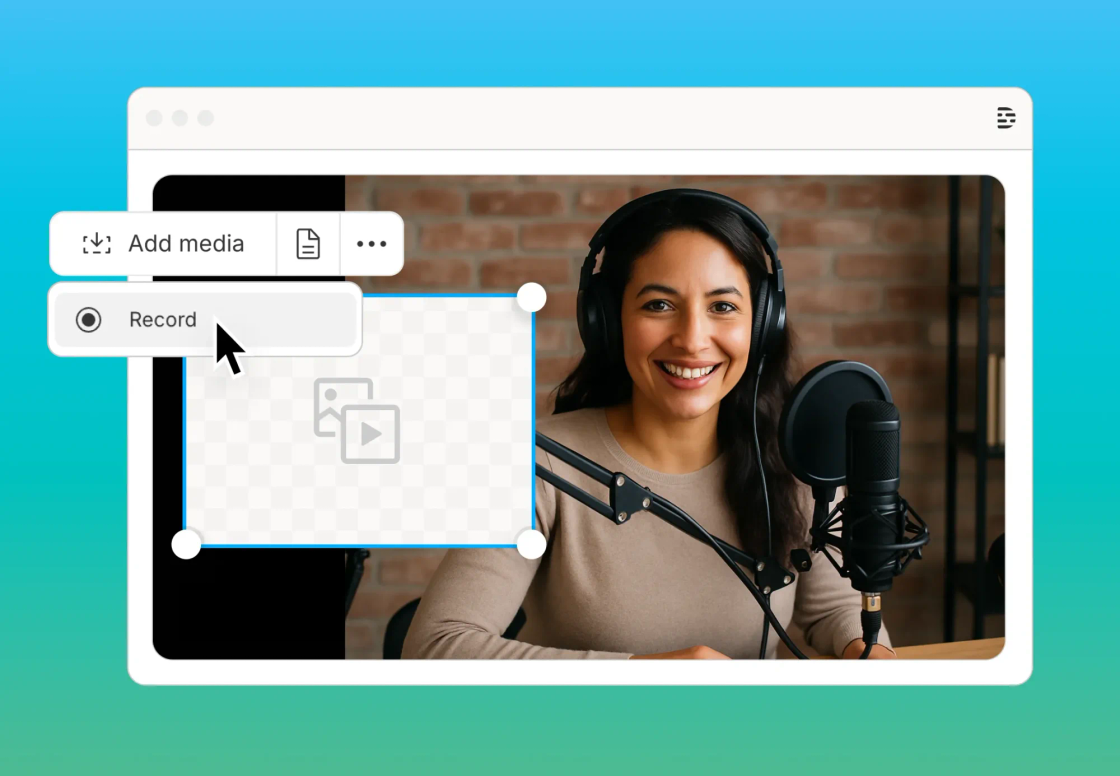
Breathe new life into your videos by layering extra footage that sets the scene, covers jump cuts, or injects energy. Learn how to seamlessly add b-roll to video in minutes.
Get startedThese companies use Descript. Not bad!















01
Open a new project in your video editor and add your primary video. If you’re recording inside the platform, just capture your footage. Once imported, a transcript usually appears so you can identify the best moments to overlay with b-roll.
02
Browse your media library or stock sources for relevant b-roll clips. Drag those clips into your timeline and place them where you need extra visuals—like covering rough cuts or emphasizing key points. Pay attention to transitions between cuts for a seamless flow.
03
Preview the composition to ensure your b-roll timing looks intentional, not random. Adjust audio levels, tweak transitions, or add effects if needed. Finally, publish or export your new masterpiece, complete with polished b-roll.
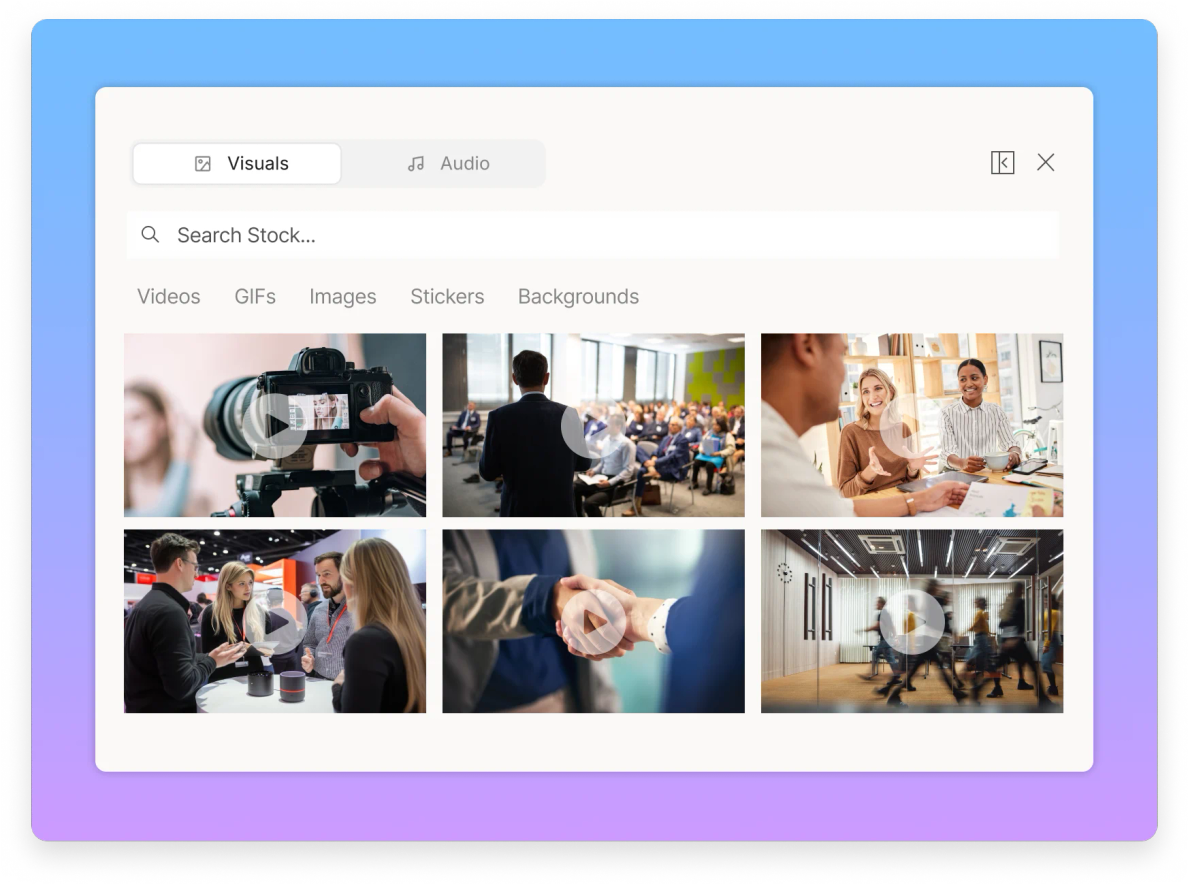
Dropping in b-roll helps your audience visualize what’s being discussed — whether it’s action shots, product demos, or background details. By adding b-roll to your video, you give viewers richer context and keep them engaged.

Cutting between talking-head clips can feel jarring. Adding b-roll smooths over those rough edits, letting you hide imperfections while keeping attention on your story. It’s like an automatic b-roll generator that turns awkward cuts into seamless flow.
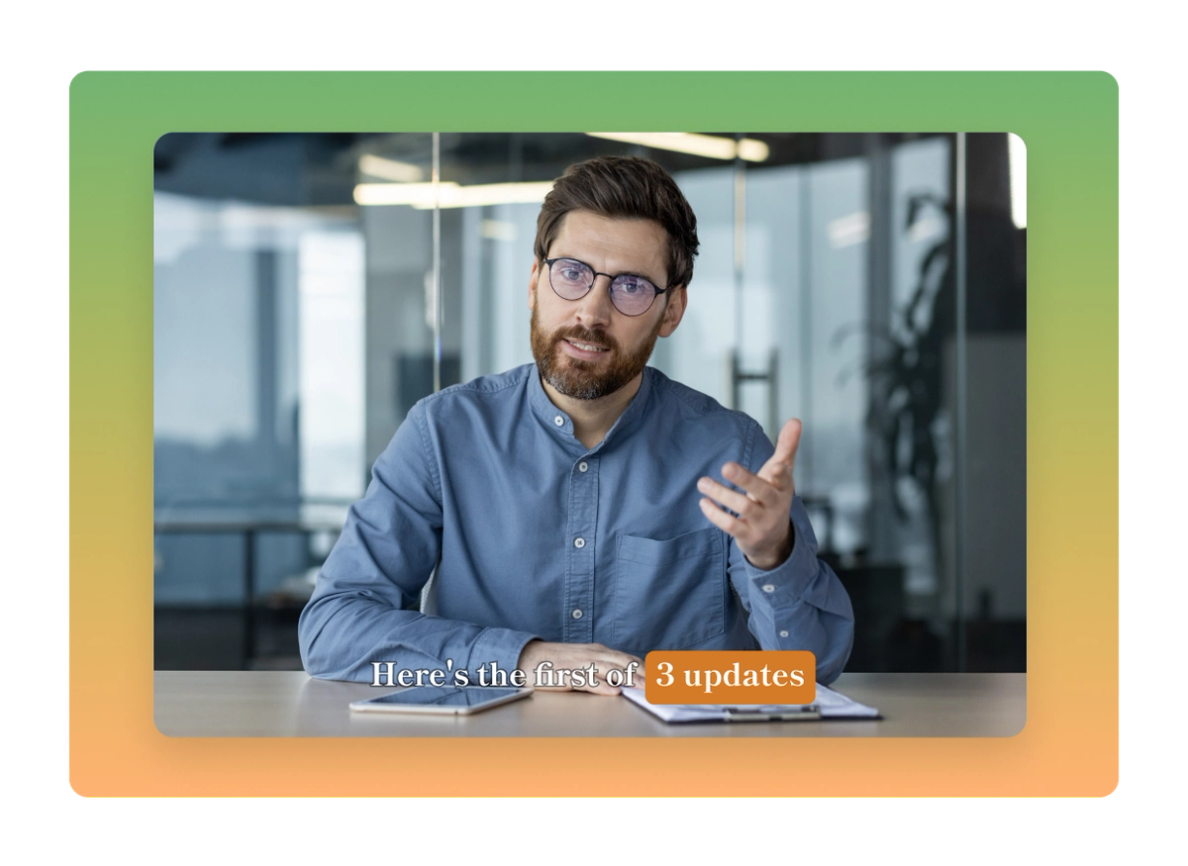
Strategic stock footage placement and relevant b-roll elevate your video quality. From mood-setting clips to industry-standard visuals, b-roll adds polish that makes your content look professional and keeps viewers engaged longer.
Optimize your workflow and create compelling stories customers will love.

Browse a massive catalog of images, videos, and GIFs—no extra subscription needed. Find everything from cityscapes to epic sunsets.
Switch your view or reorder your scenes quickly to integrate new visuals whenever you need them—no complicated timeline tangles.
Invite other creators to work on the same project. Tag team, comment, or fix mistakes together in real time without confusion.
Enhance audio with noise reduction, or remove backgrounds in a pinch. Spend more time polishing your b-roll, less time cleaning up problems.
With a 4.6-out-of-5-star rating and a bunch of distinctions on G2, Descript’s users have declared it an industry standard in the video and podcasting world.
2026


“With Descript I'll be able to at least double my content output since editing is taking one-quarter the time it used to.”

Donna B.
“With Descript we can create videos for our YouTube channel and our LinkedIn page much faster and with high quality.”

Balázs N.
“Descript has made cleaning up and creating my educational videos into professional presentations [possible] without needing extensive technical computer skills.”

Barbara C.
“Descript makes recording and editing audio and video a breeze. It's advanced features have streamlined my workflows, saving me a lot of time usually spent editing.”

Roderick F.
“The collaborative tools streamline teamwork, allowing my team and me to work efficiently together on projects. Overall, Descript enhances productivity and simplifies the editing process.”

Aldrich M.
“Transcription-based editing makes the process much faster…All in all, a must have editor for most audiences, especially in SaaS marketing.”

Nidhin M.
Surely there’s one for you
$0
$0
per person / month
Start your journey with text-based editing


1 media hour / month

100 AI credits / month

Export 720p, watermark-free

Limited use of Underlord, our agentic video co-editor and AI tools

Limited trial of AI Speech
$24
$16
per person / month
1 person included
Elevate your projects, watermark-free
10 media hours / month
400 AI credits / month
Export 1080p, watermark-free
Access to Underlord, our AI video co-editor

AI tools including Studio Sound, Remove Filler Words, Create Clips, and more
AI Speech with custom voice clones and video regenerate
Most Popular
$35
$24
per person / month
Scale to a team of 3 (billed separately)
Unlock advanced AI-powered creativity
30 media hours / month
800 AI credits / month
Export 4k, watermark-free
Full access to Underlord, our AI video co-editor and 20+ more AI tools

Generate video with the latest AI models

Unlimited access to royalty-free stock media library

Access to top ups for more media hours and AI credits