

If you have a Windows 11 PC, you may already have a video editor. Clipchamp comes with the operating system, and its free plan can export a clean 1080p video. That gives every other editor on this list a useful question to answer: what would it help you do better?
The best video editing software for Windows depends on your projects, your PC, and how much time you want to spend learning. A quick screen tutorial calls for different tools than a gaming montage or a client film. Your budget matters, too, especially when a free download adds a watermark to the finished video.
Start with the quick picks below, then check the table against your hardware. If you use both Windows and Mac, our broader guide to video editing software covers editors beyond this Windows shortlist.
Best video editing software for Windows at a glance
- Best free and best for beginners: Clipchamp covers everyday edits without an extra purchase.
- Best for YouTube and gaming: DaVinci Resolve gives you detailed editing and color tools, provided your PC can handle it.
- Best for professional post-production: DaVinci Resolve Studio adds specialized effects and processing tools.
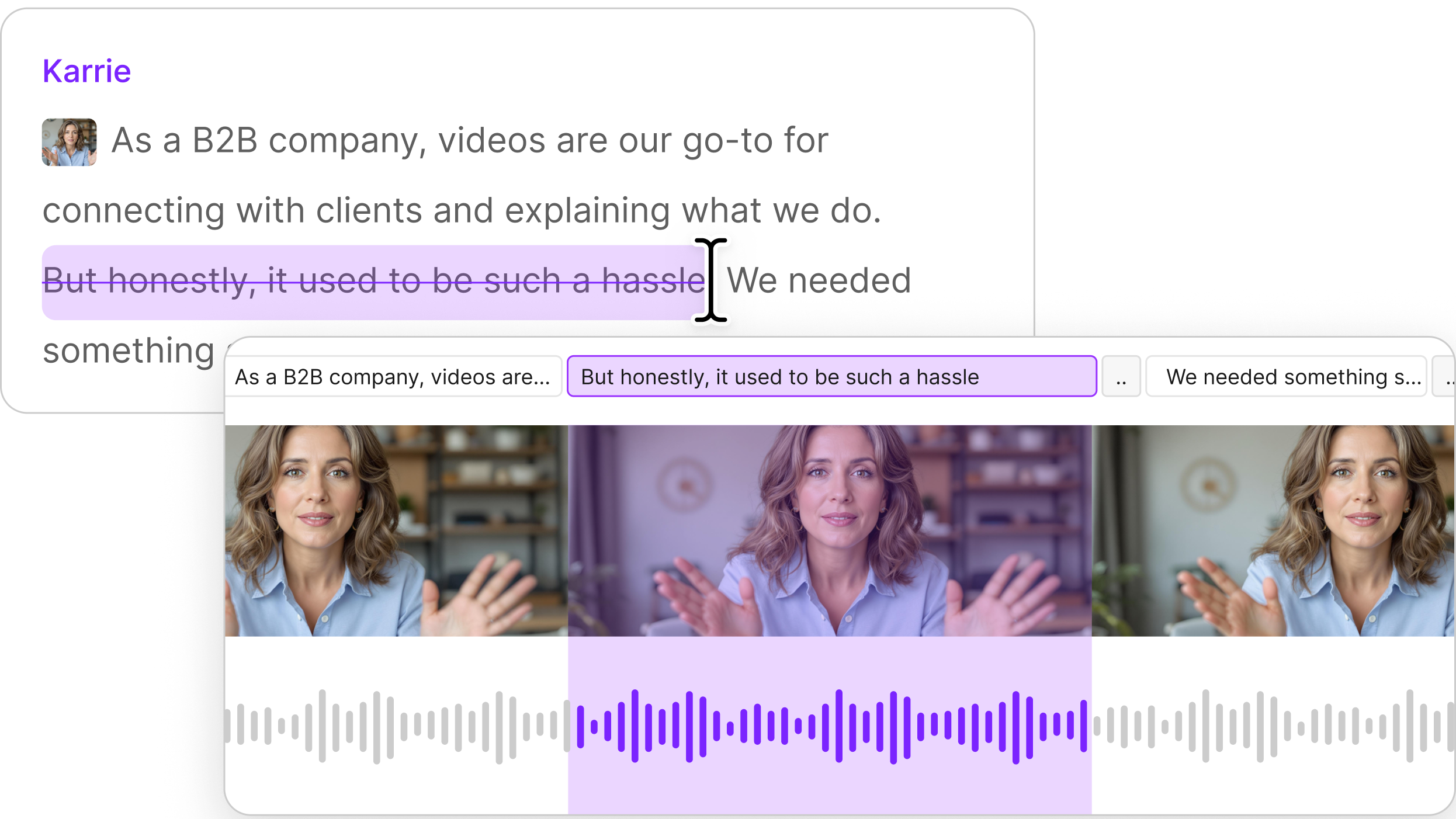
- Best for podcasts and talking-head videos: Descript lets you find and cut spoken sections in the transcript.
Prices and requirements below reflect published U.S. information checked in September 2026. Promotions and app requirements can change.
Hardware minimums tell you whether an app can run. Smooth playback depends on your footage, effects, drivers, and available storage.
We compared each editor’s published plans, export restrictions, Windows support, and hardware requirements. We also weighed how well each editor fits common projects, from screen tutorials to gaming videos.
The 10 best Windows video editors
Best free editing software for Windows
Clipchamp: The editor already on your Windows 11 PC
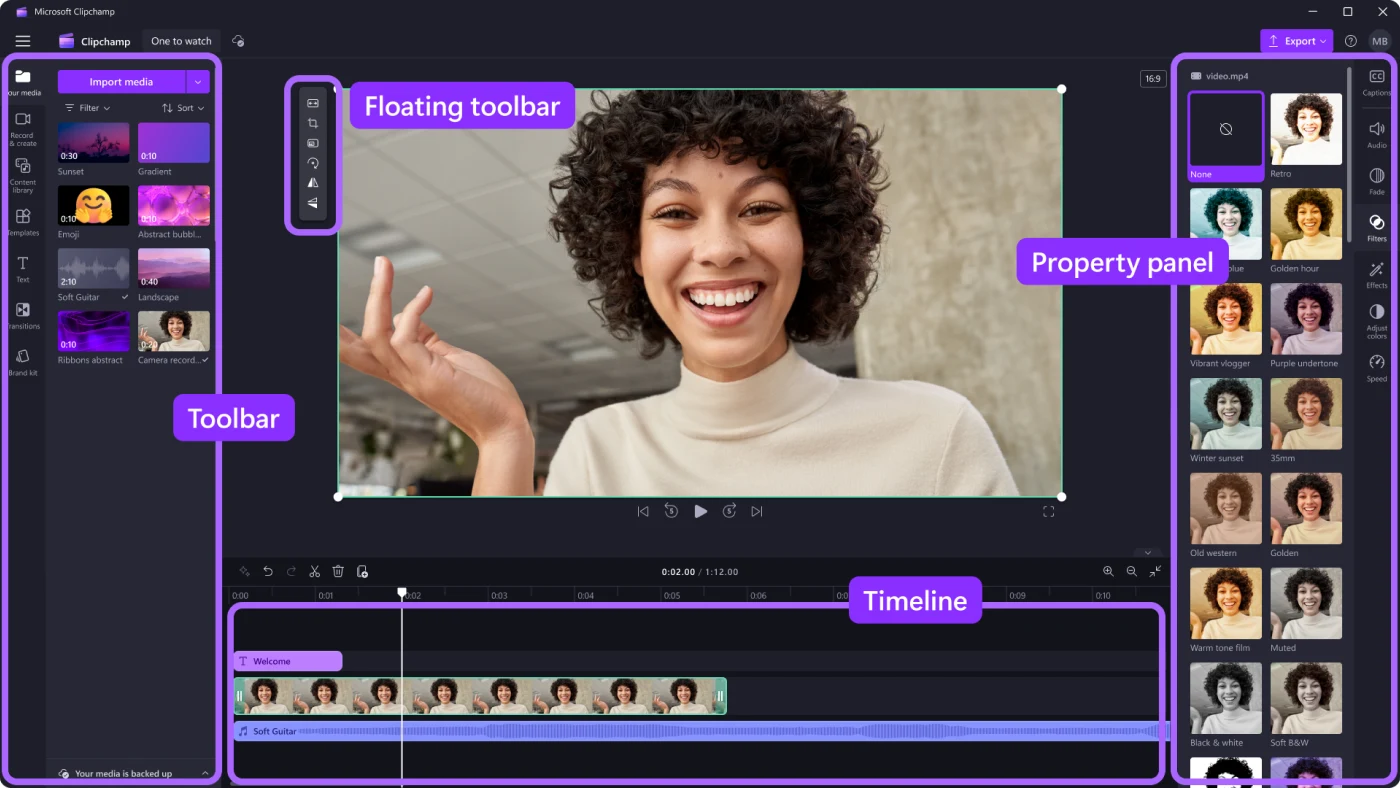
Clipchamp is the easiest place to begin if you need to trim clips, add text, combine footage, and export a finished video. Its free plan supports 1080p exports without a watermark. Windows 10 users can install the app separately.
It suits simple YouTube uploads, school projects, and quick work videos. If your edit relies on premium stock or 4K export, check the plan before you finish. For a basic first project, our video trimming guide can help you plan the cuts.
DaVinci Resolve (free): A deeper editor with room to grow
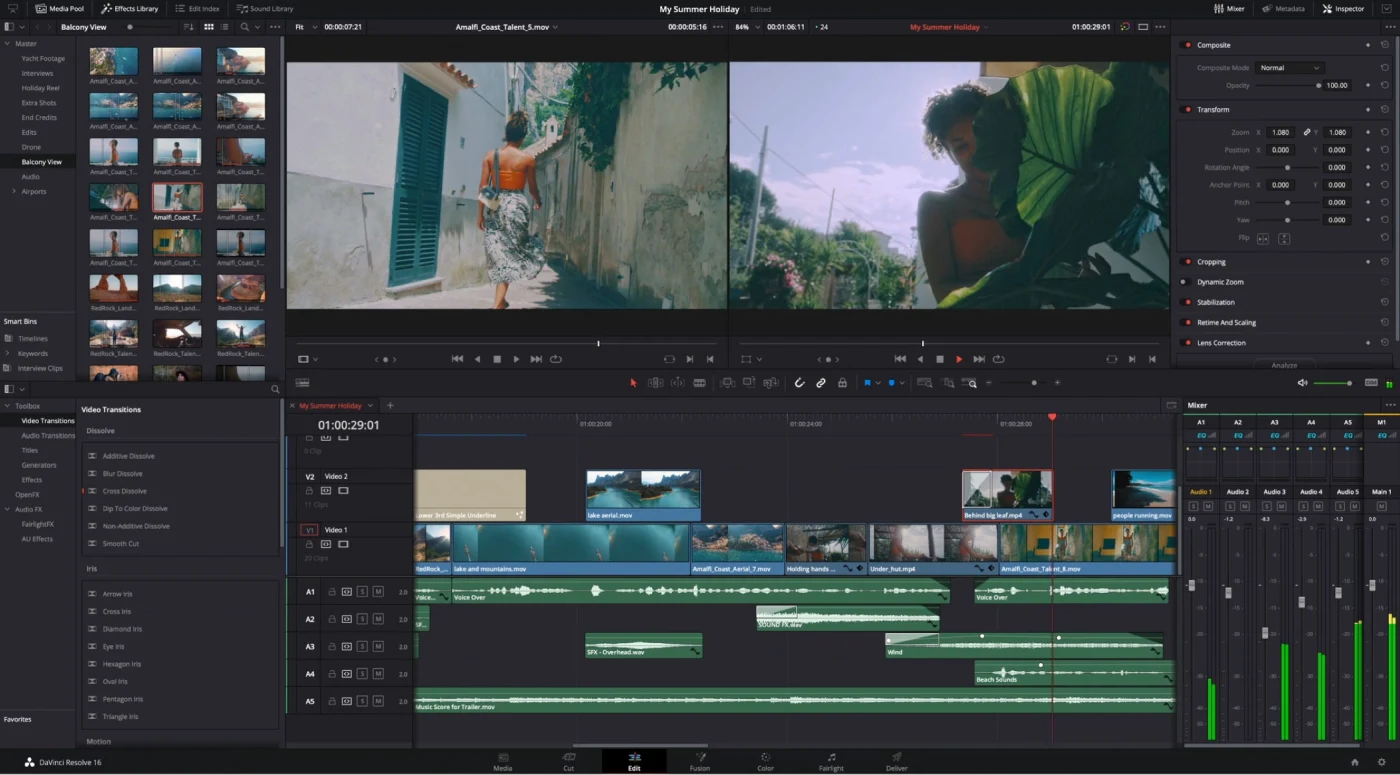
Resolve combines timeline editing, color correction, visual effects, and audio tools. The free edition supports projects up to Ultra HD at 60 frames per second. It’s a strong choice for YouTube or gaming footage when you want control over the final look.
You’ll spend longer learning it than Clipchamp. It also asks more of your PC, especially with effects or high-resolution footage. Start with a short project before committing to a whole series.
CapCut for Windows: Fast edits for social video
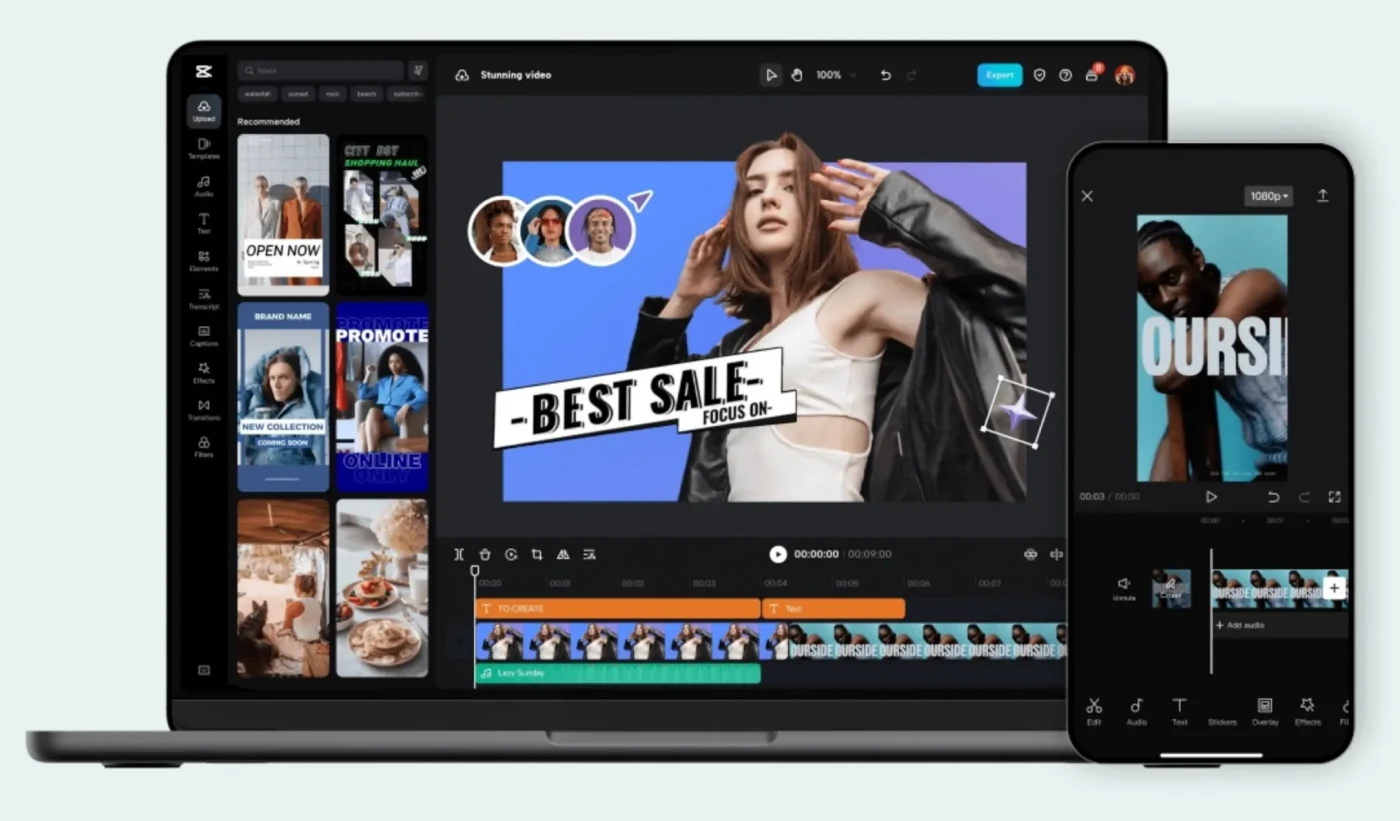
CapCut puts templates, effects, captions, and a timeline in a format that suits short-form videos. Its low stated hardware minimum makes it worth trying on a modest PC.
Check every asset before export. Some templates or settings require Pro, and watermark behavior depends on how you made the project. Our CapCut editing guide walks through the basic workflow.
Shotcut: Free editing without an account
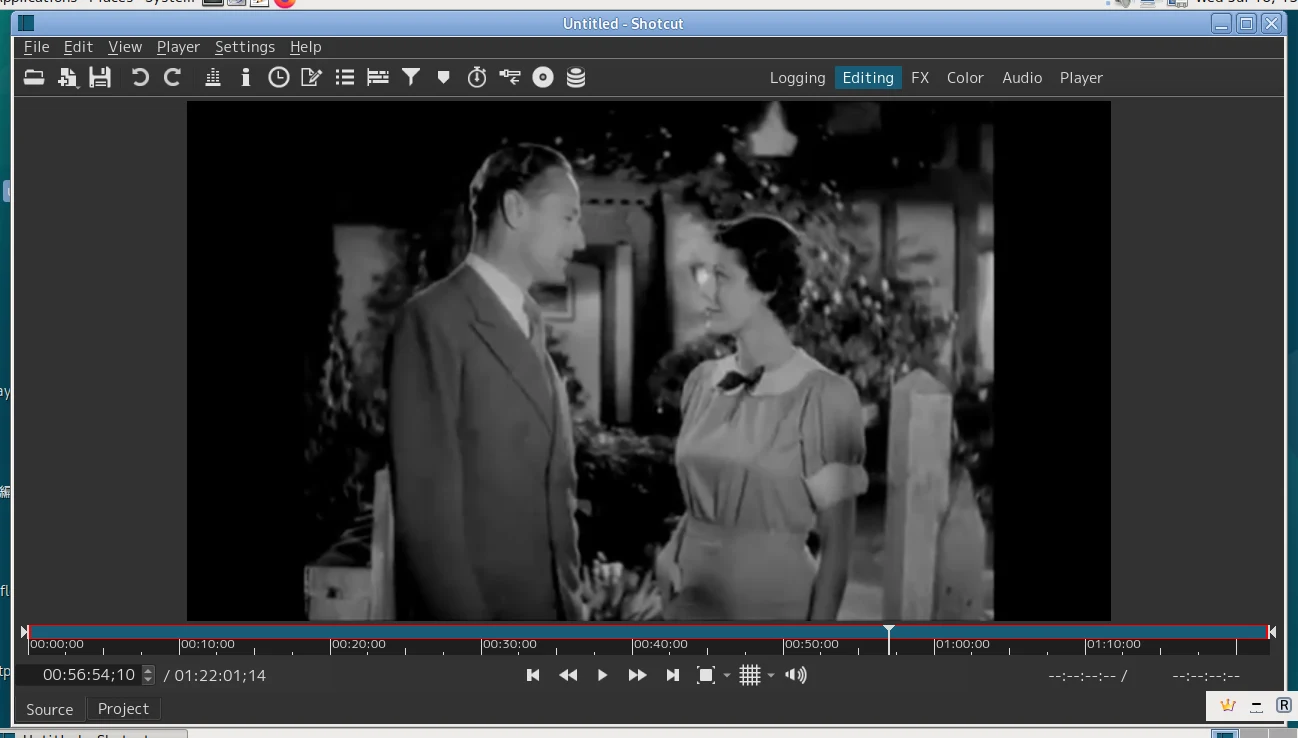
Shotcut is an open-source editor with broad format support and no subscription. It gives you more timeline control than Clipchamp, though its interface takes time to learn.
Its published requirements call for 8 GB of RAM for HD editing. On a slower PC, preview scaling and proxies can ease playback. You can learn more about using video proxies.
OpenShot: Straightforward, open-source editing
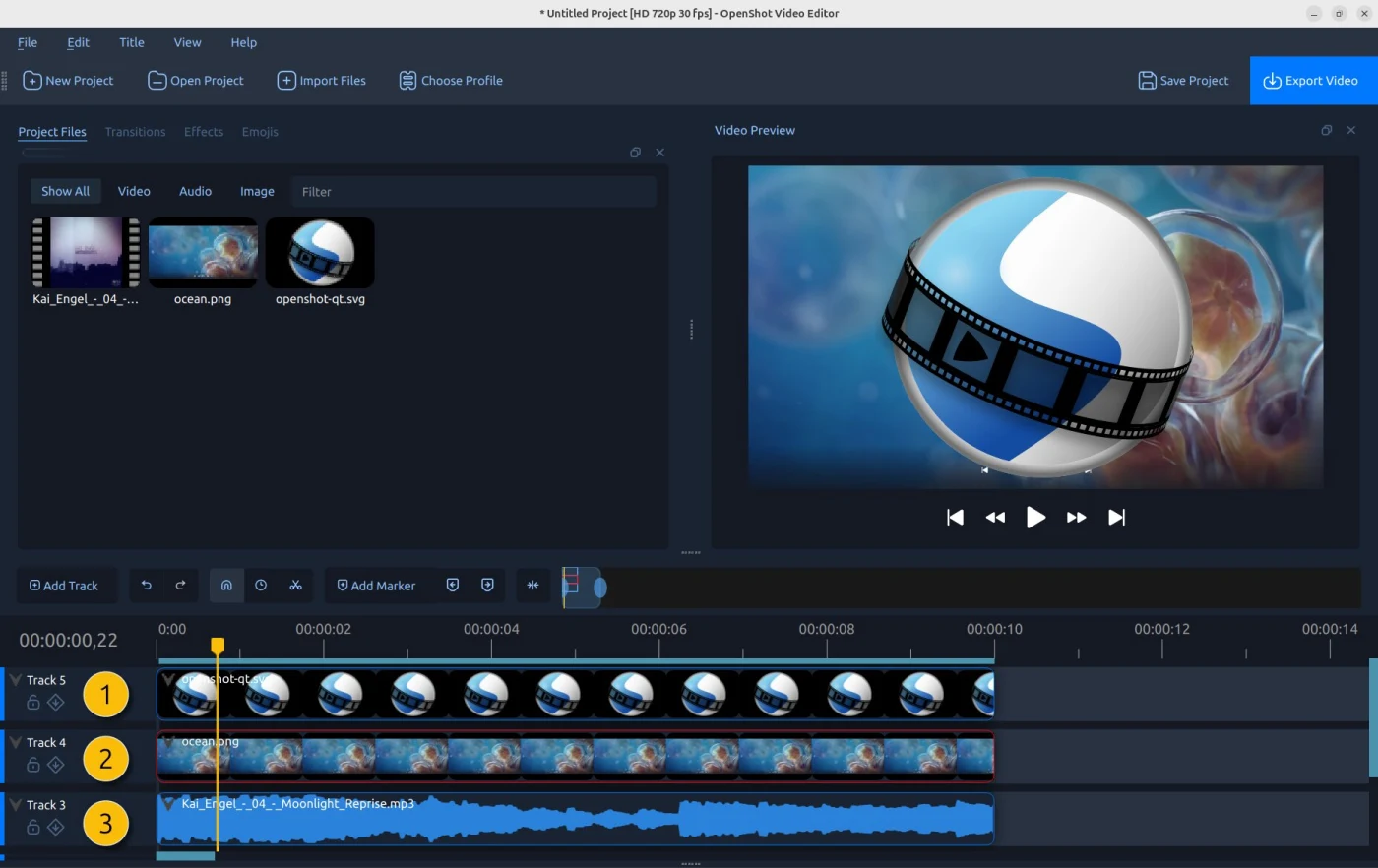
OpenShot handles basic cuts, titles, audio tracks, and animations. It’s free and can run on a Windows PC with 4 GB of RAM, although OpenShot recommends more memory.
Try it for occasional projects if you want a simple timeline without a paid plan. For long timelines or demanding effects, the other editors here offer more room to work.
Best paid editing software for Windows
Adobe Premiere: For established production workflows
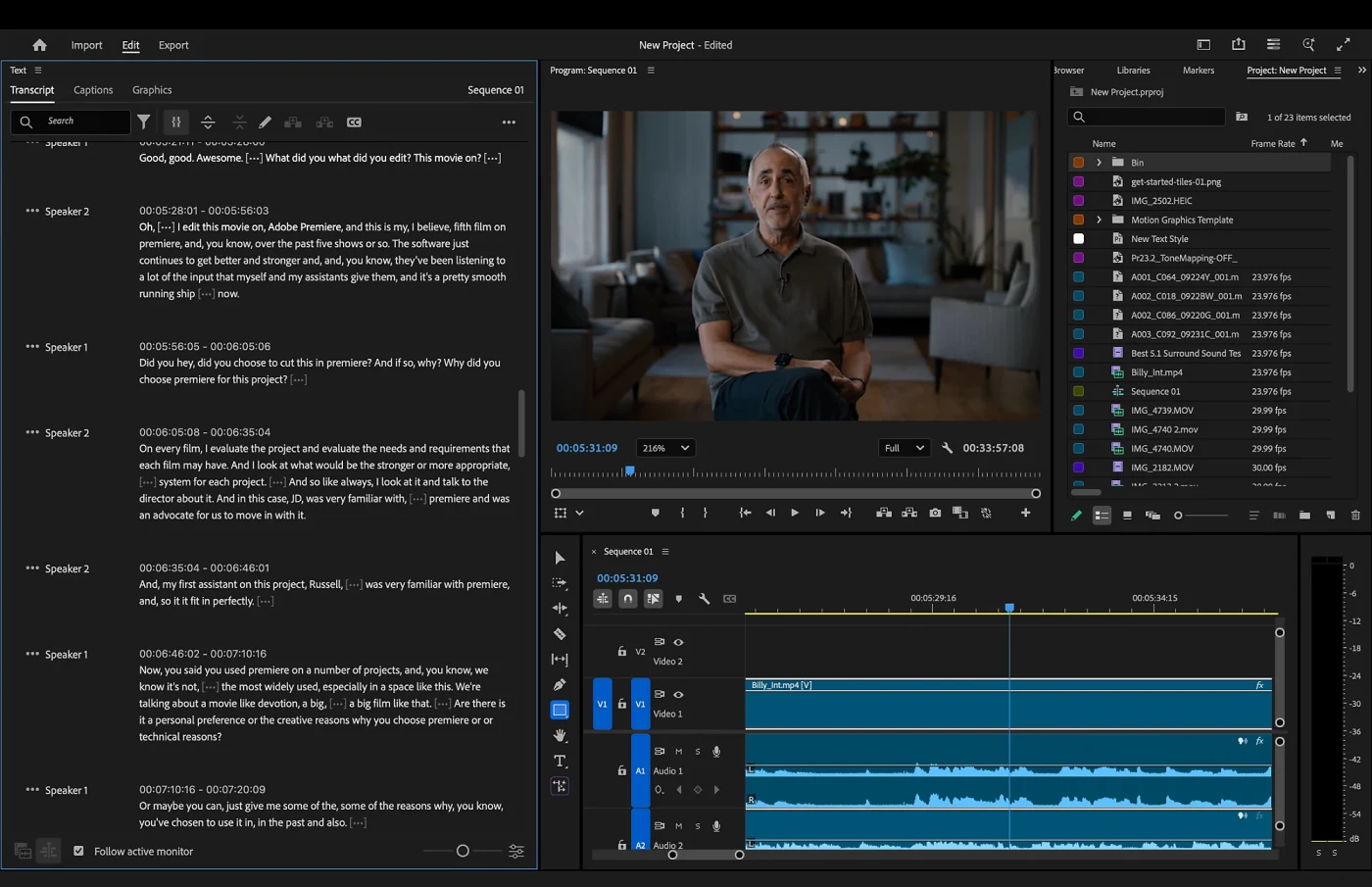
Premiere suits editors who need detailed timeline controls and collaborate through Adobe projects. Its integrations can help when footage, graphics, and reviews move among several people.
Check your operating system before subscribing. Adobe lists Windows 11 v24H2 for the current release and recommends 32 GB of RAM for 4K work. Windows 10 users should check older-version availability and support directly with Adobe.
DaVinci Resolve Studio: For advanced post-production
Studio adds Neural Engine features, more effects, and advanced finishing options beyond the free version. Its one-time price makes sense when a specific Studio feature belongs in your regular workflow.
Try the free edition first. If it handles your edits and exports, you can keep working without upgrading. Studio’s heavier effects also benefit from more GPU memory than a basic editing setup.
CyberLink PowerDirector: For an approachable paid timeline
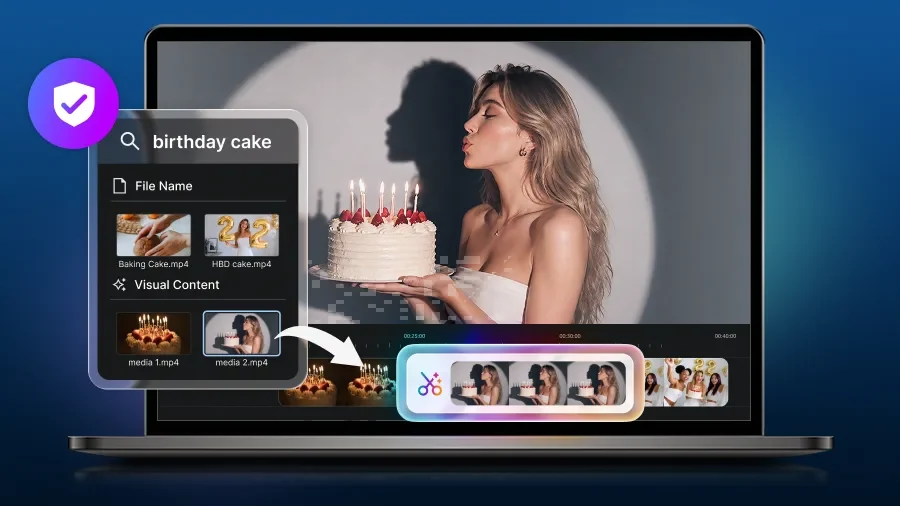
PowerDirector combines timeline editing with a large selection of titles, effects, and stock assets. It can suit someone who wants more options than Clipchamp without taking on Resolve’s learning curve.
PowerDirector 365 is the subscription option. CyberLink also offers a perpetual version, while its free Essential edition adds a watermark. The current Windows requirements list 8 GB of RAM and 2 GB of GPU memory.
Descript: For videos built around spoken words
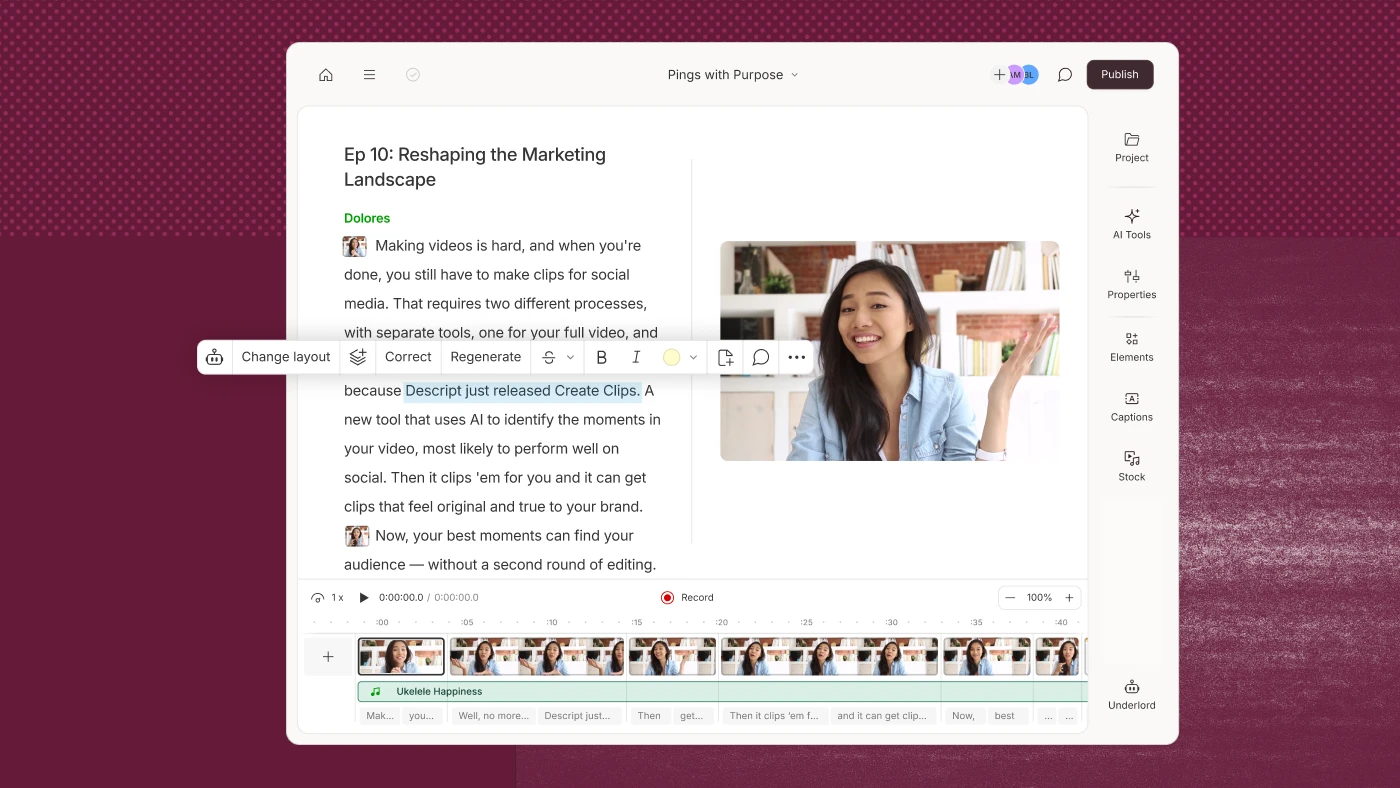
Descript is a different fit from the full timeline editors here. It works well for interviews, video podcasts, tutorials, and screen recordings where the spoken content shapes the edit.
You can find a rambling section in the transcript, remove it, and review the matching cut in the video. The editor also supports captions and audio cleanup with Studio Sound. Detailed color grading and visual effects belong in another editor.
The current Windows desktop app requires Windows 11. Descript’s free plan includes 60 media minutes monthly and watermarked 720p exports; Hobbyist removes the watermark.
Filmora: For guided edits and ready-made effects
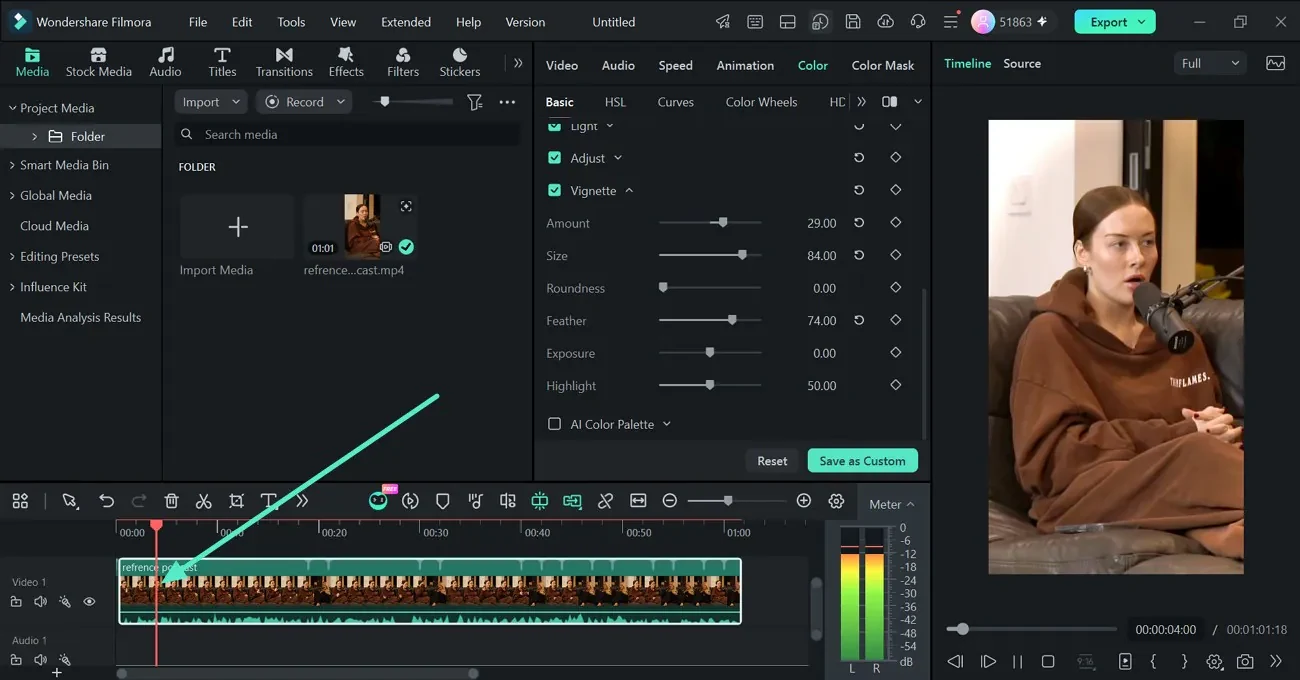
Filmora offers an approachable timeline with titles, transitions, templates, and caption tools. It suits creators who want more visual options without learning a professional post-production suite.
The free desktop version watermarks exports. Paid plans remove it, but check the license before buying: Filmora’s perpetual option covers updates within its current major version, while subscriptions include upgrades to new major versions.
How to choose a video editor for Windows
A good editor should fit both your video and your PC. Check four things before downloading:
- Price and export terms: Look past “free download.” Check watermarks, resolution limits, premium assets, and renewal terms.
- Hardware: Compare your RAM, graphics, and free storage with the current requirements. Minimum specs rarely promise comfortable 4K editing.
- Learning curve: A guided timeline suits quick cuts. Resolve and Premiere give you deeper controls; Descript starts with the transcript.
- Project type: Choose for the work you repeat. A gaming montage, filmed tutorial, and podcast clip place different demands on an editor.
If you’re preparing a YouTube channel, our YouTube editing guide covers the steps around the software choice.
System requirements: What your PC needs
Budget PC: Integrated graphics and 8 GB of RAM
Start with Clipchamp, CapCut, Shotcut, or OpenShot and use a short 1080p project to check playback. Keep other apps closed and leave space for temporary files. Clipchamp recommends more than 8 GB for a better experience.
Mid-range PC: Dedicated GPU and 16 GB of RAM
This is a more comfortable starting point for Resolve, Filmora, PowerDirector, and Descript’s recommended HD setup. Your graphics card, source format, and effects still affect performance. Check the current GPU requirements before installing Resolve.
If you record gameplay separately, our Windows screen recording guide covers capture options before you start editing.
High-end PC: More GPU memory and at least 32 GB of RAM
Extra memory and GPU capacity help with 4K footage, multicamera work, effects, and demanding color grades. Adobe recommends 32 GB or more of RAM for 4K Premiere projects. Buying a larger PC won’t speed up every edit, so choose hardware based on the footage you regularly use.
Windows 10 vs. Windows 11
Clipchamp also runs on Windows 10, even though it’s included with Windows 11. Shotcut, OpenShot, CapCut, Filmora, and PowerDirector list Windows 10 support. Blackmagic lists Windows 10 for Resolve. The current Descript desktop app requires Windows 11, as does Adobe’s current Premiere release. Check the version you plan to install before paying.
Descript can help with your next video project
You can learn a lot by taking one real project through a complete edit. Make the cuts you usually make, check the audio, and export a short section. You’ll see whether the editor fits your work before moving a larger project into it.
If your videos depend on conversation or narration, try that exercise in Descript. Edit a section from the transcript, then play it back to check the pacing and visuals. Download Descript for Windows, or start with our screen recording editing guide.
Frequently asked questions
Is DaVinci Resolve really free on Windows?
Yes. Its free edition includes editing, color, effects, and audio tools, with output up to Ultra HD at 60 frames per second. Studio is a separate paid edition with additional features.
What’s the best free video editor for Windows with no watermark?
Clipchamp is a simple starting point for clean 1080p exports using free features. Shotcut and OpenShot are open-source alternatives. Resolve’s free edition suits more involved projects, while CapCut’s result depends on the assets and settings you use.
Clipchamp vs. CapCut: Which is better for beginners?
Choose Clipchamp for straightforward edits and predictable free 1080p exports. Choose CapCut if templates and short-form effects are central to your work. Check CapCut’s export screen before building a project around premium assets.
Is Adobe Premiere worth it in 2026?
It can be if you need its editing tools or regularly exchange projects with an Adobe-based team. For occasional videos, try a free editor first. Confirm your PC supports the current release before subscribing.
What do YouTubers use to edit videos on Windows?
There’s no single choice. The team behind Premiere Gal has described its Premiere workflow, while Blackmagic has documented YouTube productions using Resolve. Talking-head and tutorial creators may prefer Descript’s transcript workflow. Pick based on the kind of video you publish each week.