Continue
You’re going to love Descript.
Descript is a different kind of video & podcast editor that gives creators superpowers like:
Create your next project in Descript. It’s free.
Descript is a different kind of video & podcast editor that gives creators superpowers like:
Get started for free
Oops! Something went wrong while submitting the form.
Continue
You’re going to love Descript.
Descript is a different kind of video & podcast editor that gives creators superpowers like:
Create your next project in Descript. It’s free.
Descript is a different kind of video & podcast editor that gives creators superpowers like:
Get started for free
Oops! Something went wrong while submitting the form.
Continue
You’re going to love Descript.
Descript is a different kind of video & podcast editor that gives creators superpowers like:
Create your next project in Descript. It’s free.
Descript is a different kind of video & podcast editor that gives creators superpowers like:
Get started for free
Oops! Something went wrong while submitting the form.
Continue
You’re going to love Descript.
Descript is a different kind of video & podcast editor that gives creators superpowers like:
Create your next project in Descript. It’s free.
Descript is a different kind of video & podcast editor that gives creators superpowers like:
Get started for free
Oops! Something went wrong while submitting the form.
May 15, 2025

Best Screen Recording Software: 2025 Update

Best screen recording software for 2025 ranked. Compare top tools like Descript, Camtasia, and OBS for editing, sharing, and high-quality capture.

Descript Team
,
In this article

# Best Screen Recording Software: 2025 Update

Looking for screen recording software that actually works? The market is a mess right now—half the tools out there are either stripped-down freebies or bloated suites with features you'll never touch. Let's cut through the noise. What you need is straightforward: software that records cleanly, edits without crashing, and lets you share without a computer science degree.

Key Takeaways

  • Screen recording isn't just nice-to-have anymore—it's how teams explain complex ideas, document bugs, and train new hires without scheduling another Zoom call.
  • The right software disappears from your workflow—you'll capture, edit, and share without hunting through nested menus or waiting for endless renders.
  • Descript stands out by combining AI-powered text editing with screen recording, creating a seamless workflow from capture to final edit.

1. Descript

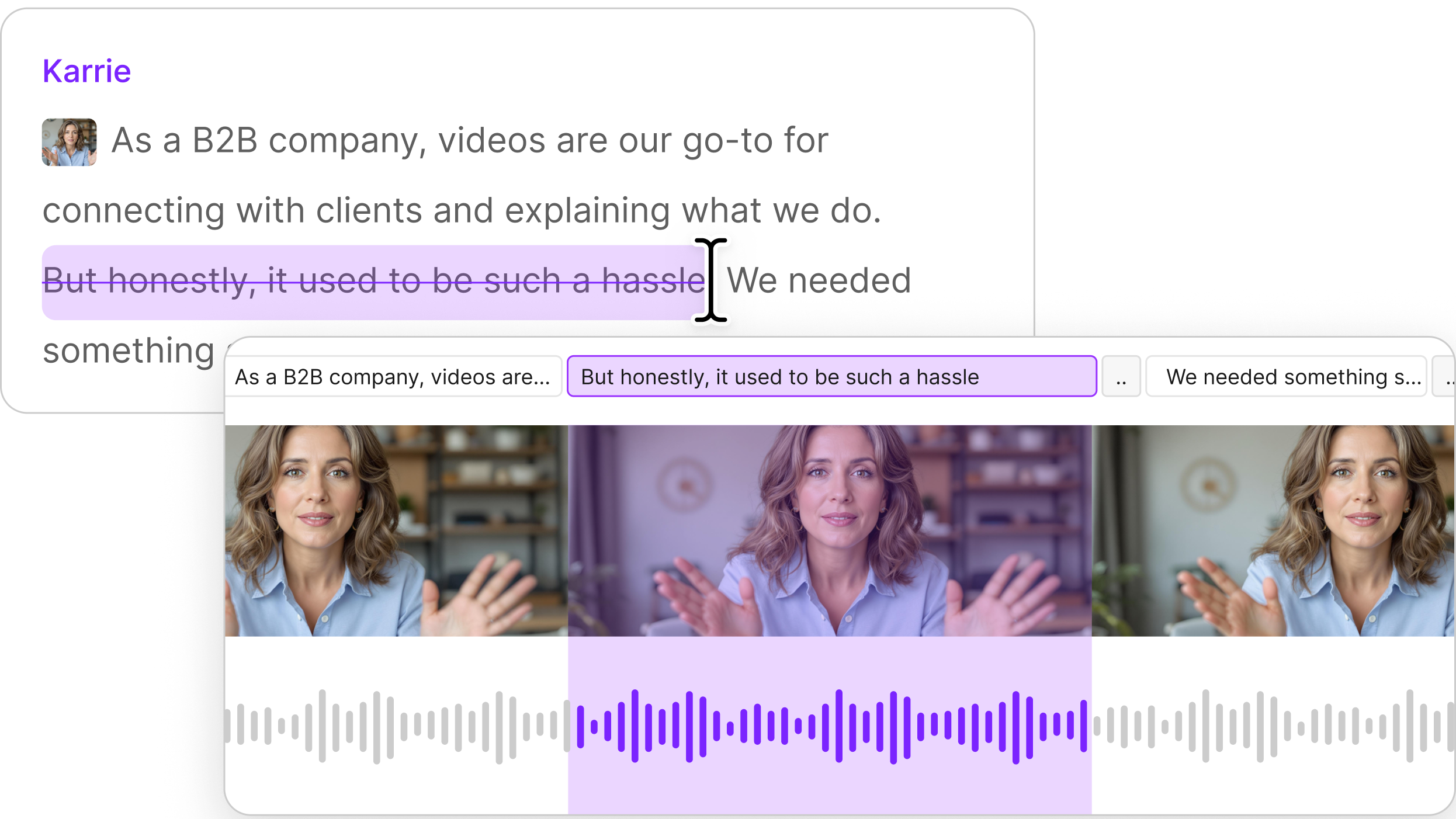
Descript completely reimagines how video editing should work. Instead of manipulating clips on a timeline, you edit your recordings like a document. Record your screen, webcam, and audio, and Descript automatically transcribes everything. Then simply edit the text to edit your video. Delete a sentence in the transcript, and it vanishes from your video too. Add or rearrange content with the simplicity of word processing.
Descript interface screenshot

Best For:

Content creators who want to skip the learning curve of traditional video editors while gaining powerful AI-assisted editing capabilities.

Key Features:

  • Text-based video editing: Edit your recordings by simply editing the transcript - cut, copy, paste, and delete words to modify your video.
  • AI-powered audio enhancement: Studio Sound removes background noise and enhances voice quality with one click, while Overdub lets you fix mistakes by typing.
  • Multitrack recording: Capture screen, webcam, and audio on separate tracks for maximum editing flexibility.

Pros:

  • Intuitive workflow: Edit videos as easily as editing a document, with no complex timeline manipulation required.
  • Powerful AI tools: Remove filler words ("ums," "uhs"), enhance audio quality, and fix mistakes without re-recording.
  • Built for collaboration: Share projects, leave comments, and work with teams in a shared workspace.

Cons:

  • Internet connection needed: Some AI features require an active internet connection.
  • No Linux version: Currently available only for Mac and Windows users.
  • Resource intensive: Larger projects with multiple tracks can demand more system resources.

Pricing:

  • Free: $0/month - Includes screen recording, 1 hour transcription, 720p export with one watermark-free video.
  • Hobbyist: $12/month (annual billing) - 10 hours transcription, 1080p watermark-free exports.
  • Creator: $24/month (annual billing) - 30 hours transcription, 4K exports, advanced AI features.
  • Business: $40/month (annual billing) - 40 hours transcription, priority support, professional AI suite.

Learn more about Descript

2. Camtasia

Camtasia has built a reputation as the go-to screen recorder for educators and professionals who need robust editing capabilities. The software combines straightforward recording with a full-featured video editor, making it perfect for creating polished tutorials and training videos. Its traditional timeline approach will feel familiar to anyone who's used video editing software before.
Camtasia interface screenshot

Best For:

Educators and professionals who need detailed editing control for creating polished instructional content.

Key Features:

  • Multi-track timeline editing: Arrange clips, add transitions, and layer elements with precise control.
  • Annotations and callouts: Draw attention to important areas with arrows, shapes, and text.
  • Cursor effects: Highlight mouse movements with customizable effects to guide viewer attention.

Pros:

  • Stable performance: Handles longer recordings and complex projects reliably.
  • Rich asset library: Includes royalty-free music, backgrounds, and icons to enhance your videos.
  • Templates and themes: Save time with reusable layouts for consistent branding.

Cons:

  • Subscription model: Recent shift to annual subscription pricing may deter some users.
  • Steeper learning curve: The extensive feature set can overwhelm beginners.
  • Premium pricing: Higher cost compared to simpler screen recording tools.

Pricing:

  • Essentials: $143.90/year - Unlimited recording, video editing, speech-to-text transcription.
  • Create: $199.20/year - Adds text-based editing, AI script generation, audio cleanup.
  • Pro: $399.20/year - Adds collaboration features, AI translation, avatars, premium assets.

Learn more about Camtasia

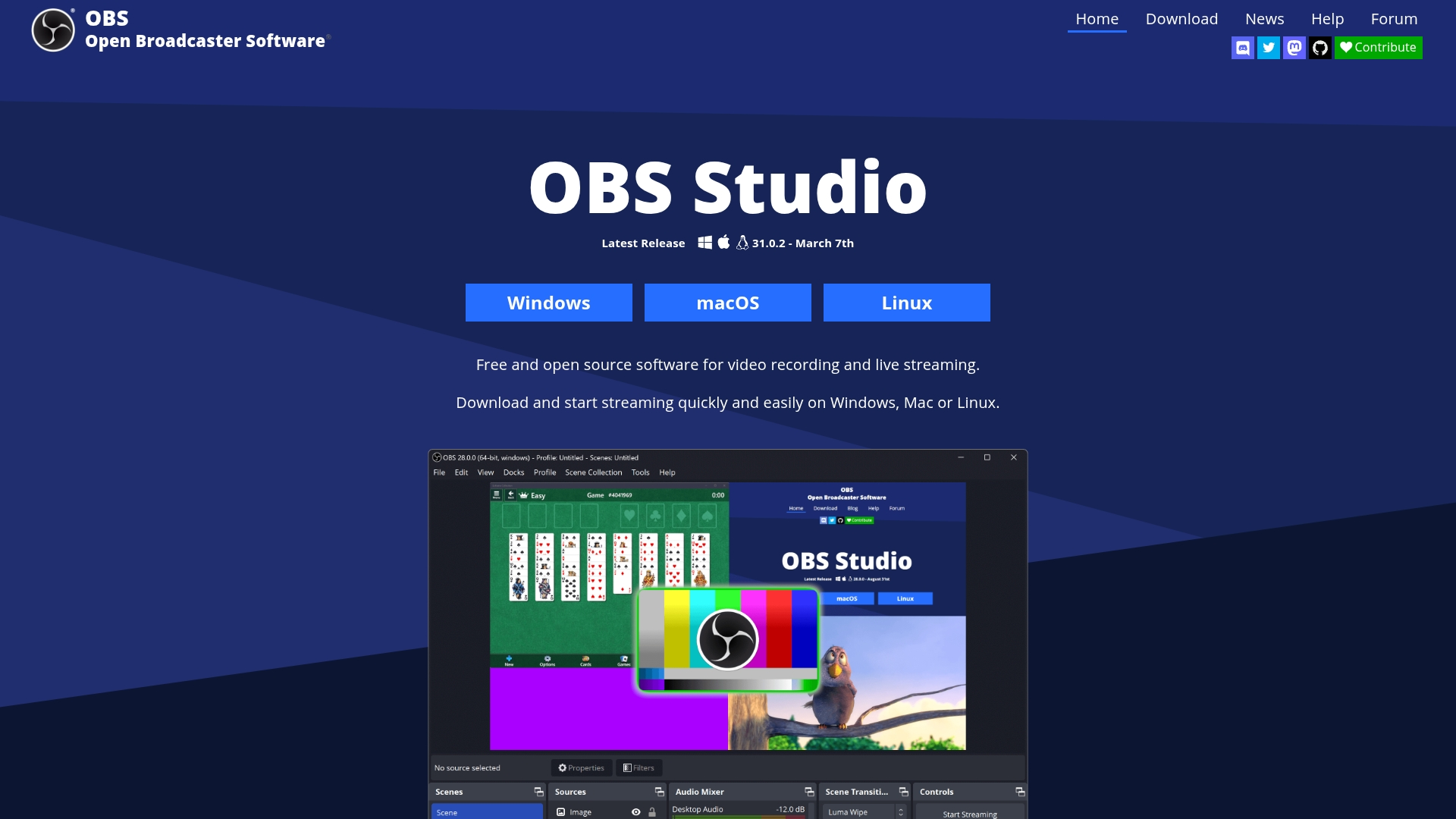
3. OBS Studio

OBS Studio dominates the free, open-source recording space for good reason. Popular with gamers and live streamers, this powerful tool offers unmatched customization for those willing to learn its interface. OBS uses a scene-based system where you arrange multiple sources (webcams, screen captures, images, text) into layouts that you can switch between during recording or streaming.
OBS Studio interface screenshot

Best For:

Gamers, streamers, and tech-savvy users who need maximum control and customization at zero cost.

Key Features:

  • Scene-based recording: Create multiple layouts with various sources and switch between them seamlessly.
  • Live streaming integration: Stream directly to Twitch, YouTube, and other platforms with optimized settings.
  • Plugin ecosystem: Extend functionality with community-developed plugins and scripts.

Pros:

  • Completely free: All features available at no cost, with no watermarks or time limits.
  • Highly customizable: Adjust nearly every aspect of your recording setup to your exact needs.
  • Active community: Large user base provides extensive tutorials, resources, and support.

Cons:

  • Steep learning curve: Interface can be intimidating for beginners with its many options.
  • No built-in editing: Requires separate software for post-production work.
  • Hardware demands: May require decent computer specs for optimal performance.

Pricing:

  • Free: $0 - All features included, supported by community contributions.

Learn more about OBS Studio

4. EaseUS RecExperts

EaseUS RecExperts strips away the complexity—just pick your capture area, hit record, and you're rolling. The software makes it easy to capture your screen, webcam, or both with minimal setup. It's particularly well-suited for business professionals who need to record meetings, webinars, or presentations without getting bogged down in technical details.
EaseUS RecExperts interface screenshot

Best For:

Business professionals who need reliable, scheduled recording for meetings and presentations.

Key Features:

  • Scheduled recording: Set up recordings to start and stop automatically at specific times.
  • 4K resolution support: Capture high-quality video suitable for professional presentations.
  • Basic editing tools: Trim recordings and make simple adjustments without switching software.

Pros:

  • User-friendly interface: Clean, straightforward controls make setup quick and intuitive.
  • Reliable performance: Stable recording even for longer sessions.
  • Low resource usage: Runs efficiently without slowing down other applications.

Cons:

  • Limited editing capabilities: Basic trimming only; complex edits require different software.
  • Subscription model: Ongoing costs can add up compared to one-time purchases.
  • AI features locked to premium tiers: Advanced features require higher-priced plans.

Pricing:

  • Monthly: $19.95/month - Basic recording and editing features.
  • Yearly: $5.80/month (billed annually) - Same features at a discount.
  • Lifetime: $119.95 (one-time) - Permanent license with free updates.

Learn more about EaseUS RecExperts

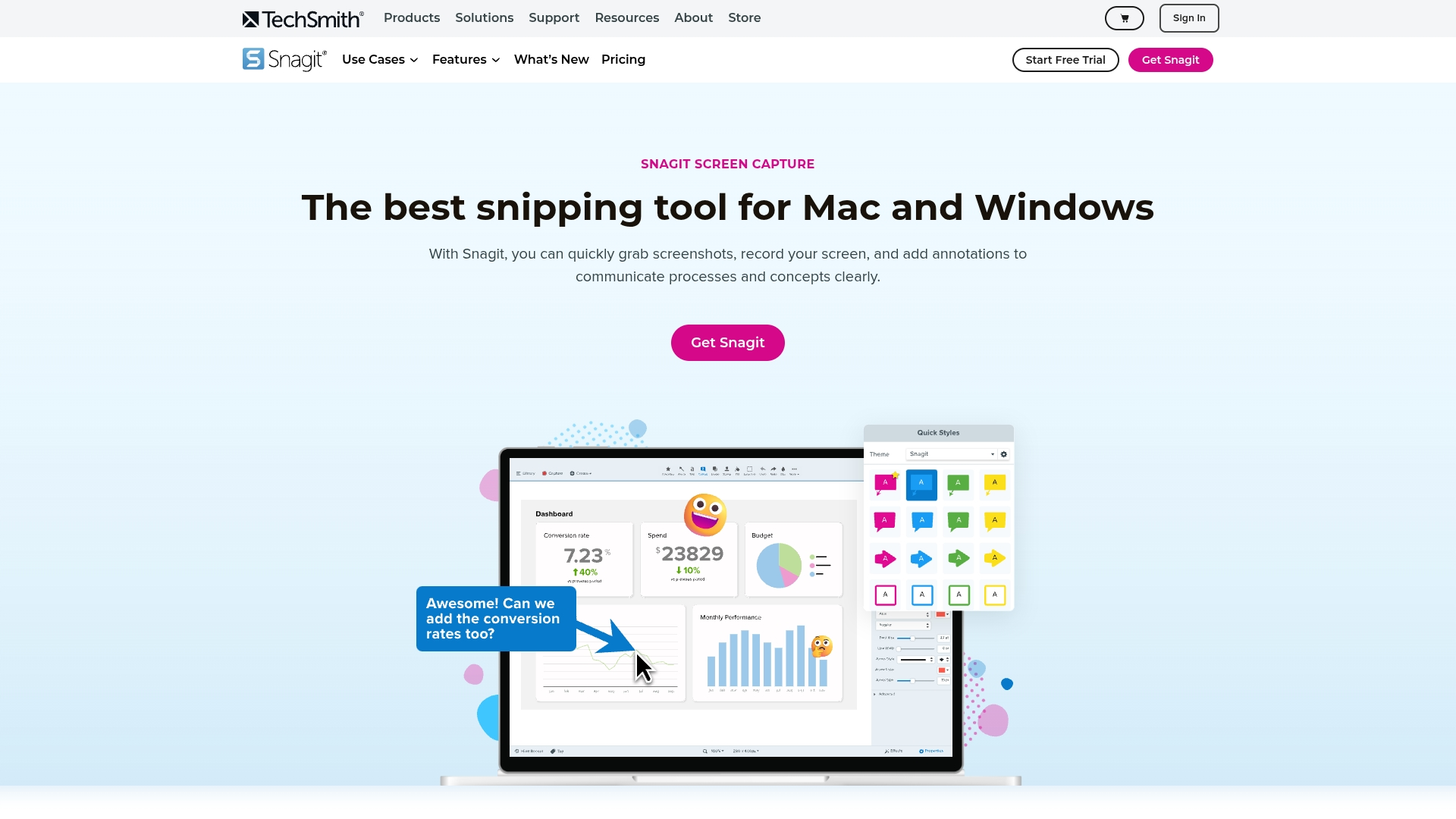
5. TechSmith Snagit

Snagit is the king of grab-and-go recording—perfect when you need to show something quickly without a full production setup. While primarily known as a screenshot tool, its screen recording capabilities make it perfect for creating short instructional videos, GIFs, and demonstrations. The software focuses on speed and simplicity, letting you record, make basic edits, and share in minutes.

Best For:

Quick captures and lightweight editing without big learning curves.

Key Features:

  • Screenshot and screen recording combo: Capture both images and video with the same tool.
  • GIF creation: Convert recordings into shareable GIFs for documentation or social media.
  • Annotation tools: Add text, arrows, and callouts to highlight important information.

Pros:

  • Instant sharing options: Send captures directly to email, cloud storage, or social platforms.
  • Clean, minimal interface: Focus on content creation without distracting options.
  • Integration with TechSmith ecosystem: Works seamlessly with Screencast for hosting.

Cons:

  • Limited video editing: Not designed for complex productions or longer videos.
  • Annual subscription model: Recent shift from perpetual licenses may deter some users.
  • Focus on images over video: Video features feel secondary to screenshot capabilities.

Pricing:

  • Snagit Individual: $31.20/year (promotional price) - All features included.

Learn more about TechSmith Snagit

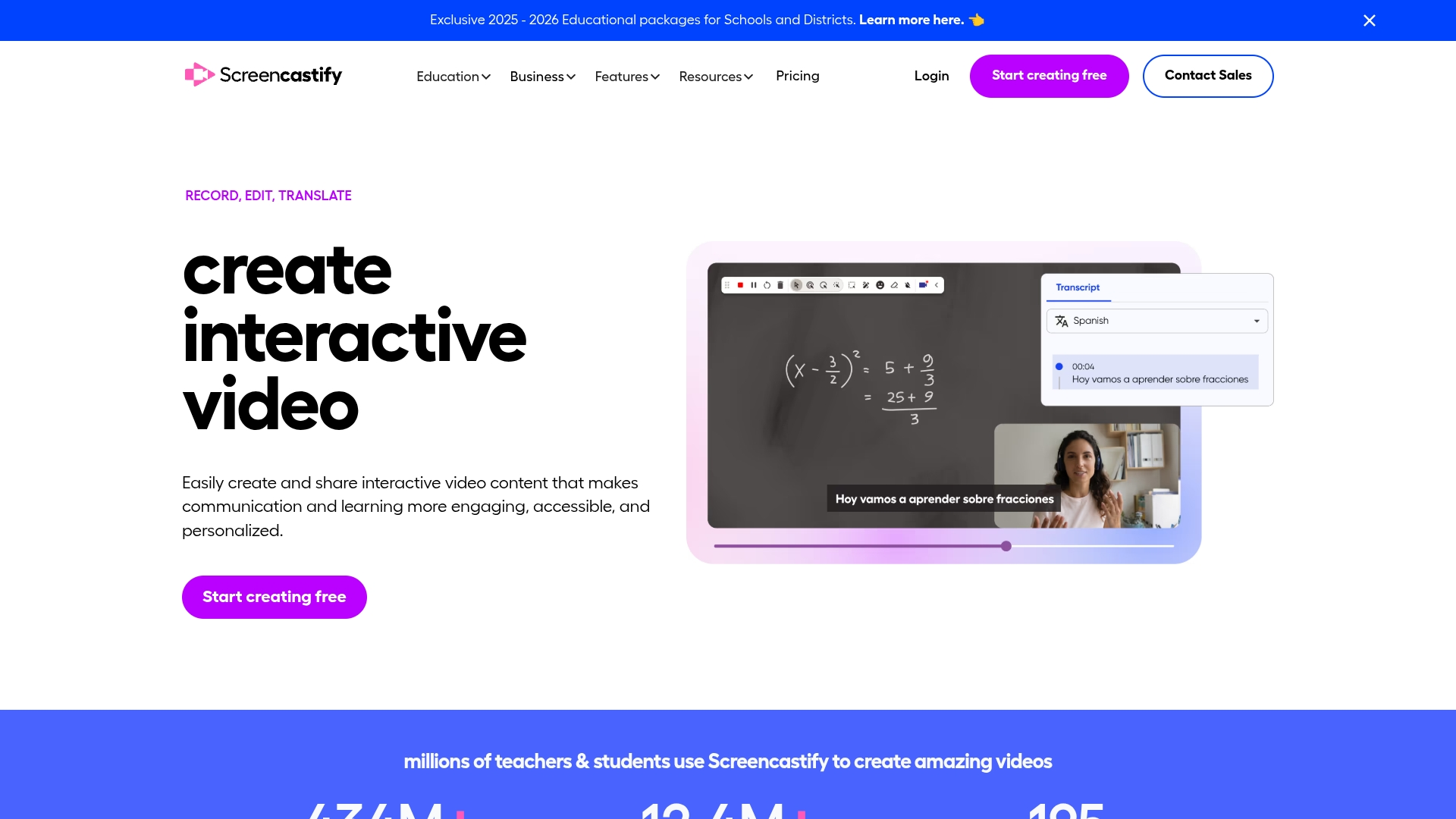
6. Screencastify

Screencastify wins on pure convenience—two clicks in Chrome and you're recording, no downloads or installs required. Just click the extension icon, choose what to record, and you're rolling. Its deep integration with Google Workspace makes it especially popular with educators and students who already use Google tools.

Best For:

Chrome users who want a fast, web-based way to record and share.

Key Features:

  • Browser extension format: Record directly from Chrome without installing desktop software.
  • Google Drive integration: Automatically saves recordings to your Drive for easy access.
  • Basic trimming and merging: Make simple edits without leaving your browser.

Pros:

  • Extremely quick setup: Start recording within seconds of installation.
  • Auto-saves to Google Drive: No need to worry about local storage or file management.
  • Ideal for quick feedback: Perfect for creating short explanatory videos or feedback.

Cons:

  • Editing features remain basic: Limited to trimming and simple adjustments.
  • Chrome dependency: Not ideal for users of other browsers.
  • Free tier limitations: Restricted to 10 videos in the free version.

Pricing:

  • Free: $0 - Up to 10 videos, basic features.
  • Paid Plans: Pricing not specified - Unlimited videos, no watermarks, advanced features.

Learn more about Screencastify

Ready to Share Your Screen Recordings?

Your perfect screen recorder depends entirely on what you're creating—a 10-second bug report needs different tools than a polished tutorial series. For quick, simple captures, Screencastify or Snagit provide hassle-free solutions. Need professional-grade editing? Camtasia delivers robust timeline editing for polished tutorials. Gamers and streamers will appreciate OBS Studio's power and flexibility, while business users might prefer EaseUS RecExperts' reliability for meetings and presentations.

But if you want the most innovative approach that combines recording, transcription, and AI-powered editing in one package, Descript stands apart. The ability to edit videos by editing text revolutionizes the process, making complex edits accessible to everyone. While everyone else is just adding 4K export options, Descript is building something different—editing that understands what you're saying, not just what you're showing.

Ready to try a new approach to screen recording? Get started with Descript for free.

Still fighting with clunky screen recording software? Tell me your war stories in the comments—I might have a workaround.

Pro Tips for Screen Recording Software

  • Tip #1: Reduce friction by planning your recording outline or script first. Know what you'll say and show before hitting record to avoid endless retakes.
  • Tip #2: Integrate with your favorite apps for seamless editing, sharing, or storing. Check compatibility with your cloud storage, video hosting, or communication platforms.
  • Tip #3: Automate repetitive tasks by saving templates for intros, outros, and common annotations. Create consistent branding across all your videos without rebuilding elements each time.

Frequently Asked Questions

How do I choose the right screen recorder for my needs?

Start by checking if your computer can handle the software—older laptops might struggle with OBS but run Screencastify just fine. Then think about what you'll actually edit—quick trimming or full productions? Mac users have different options than Windows users. Also think about your technical skill level...

Is screen recording software worth the investment?

Yes, if you regularly create tutorials, demos, or presentations. Good software saves hours of production time and helps create more professional content. The right tool can transform a basic recording into engaging content that communicates clearly.

Can I switch between these tools easily?

Most tools export to common formats like MP4, so you can move the final video between platforms. However, project files containing your edits and assets typically won't transfer between different software. Plan to complete each project in the same tool you started with.

Share this article

Get free recording and editing tips delivered to your inbox

Thank you for subscribing!
Oops! Something went wrong while submitting the form.
By subscribing, you consent to receiving marketing emails. You may unsubscribe at any time.

Related articles

Go deeper, make better video

Descript is an all-in-one editing platform that makes creating video as easy as editing text, with AI tools that reduce the drudgery so you can focus on making something good.

Try it free ->

Best Screen Recording Software: 2025 Update

An orange computer tower with a microphone attached sits on a desk, alongside a white computer keyboard. The microphone appears to be a studio-style condenser microphone, with a cylindrical shape and a metal grille. The computer tower has a sleek, modern design with clean lines and a minimalist aesthetic. The overall color scheme is predominantly orange, creating a warm and vibrant atmosphere.

# Best Screen Recording Software: 2025 Update

Looking for screen recording software that actually works? The market is a mess right now—half the tools out there are either stripped-down freebies or bloated suites with features you'll never touch. Let's cut through the noise. What you need is straightforward: software that records cleanly, edits without crashing, and lets you share without a computer science degree.

Key Takeaways

  • Screen recording isn't just nice-to-have anymore—it's how teams explain complex ideas, document bugs, and train new hires without scheduling another Zoom call.
  • The right software disappears from your workflow—you'll capture, edit, and share without hunting through nested menus or waiting for endless renders.
  • Descript stands out by combining AI-powered text editing with screen recording, creating a seamless workflow from capture to final edit.

1. Descript

Descript completely reimagines how video editing should work. Instead of manipulating clips on a timeline, you edit your recordings like a document. Record your screen, webcam, and audio, and Descript automatically transcribes everything. Then simply edit the text to edit your video. Delete a sentence in the transcript, and it vanishes from your video too. Add or rearrange content with the simplicity of word processing.

Descript interface screenshot

Best For:

Content creators who want to skip the learning curve of traditional video editors while gaining powerful AI-assisted editing capabilities.

Key Features:

  • Text-based video editing: Edit your recordings by simply editing the transcript - cut, copy, paste, and delete words to modify your video.
  • AI-powered audio enhancement: Studio Sound removes background noise and enhances voice quality with one click, while Overdub lets you fix mistakes by typing.
  • Multitrack recording: Capture screen, webcam, and audio on separate tracks for maximum editing flexibility.

Pros:

  • Intuitive workflow: Edit videos as easily as editing a document, with no complex timeline manipulation required.
  • Powerful AI tools: Remove filler words ("ums," "uhs"), enhance audio quality, and fix mistakes without re-recording.
  • Built for collaboration: Share projects, leave comments, and work with teams in a shared workspace.

Cons:

  • Internet connection needed: Some AI features require an active internet connection.
  • No Linux version: Currently available only for Mac and Windows users.
  • Resource intensive: Larger projects with multiple tracks can demand more system resources.

Pricing:

  • Free: $0/month - Includes screen recording, 1 hour transcription, 720p export with one watermark-free video.
  • Hobbyist: $12/month (annual billing) - 10 hours transcription, 1080p watermark-free exports.
  • Creator: $24/month (annual billing) - 30 hours transcription, 4K exports, advanced AI features.
  • Business: $40/month (annual billing) - 40 hours transcription, priority support, professional AI suite.

Learn more about Descript

2. Camtasia

Camtasia has built a reputation as the go-to screen recorder for educators and professionals who need robust editing capabilities. The software combines straightforward recording with a full-featured video editor, making it perfect for creating polished tutorials and training videos. Its traditional timeline approach will feel familiar to anyone who's used video editing software before.

Camtasia interface screenshot

Best For:

Educators and professionals who need detailed editing control for creating polished instructional content.

Key Features:

  • Multi-track timeline editing: Arrange clips, add transitions, and layer elements with precise control.
  • Annotations and callouts: Draw attention to important areas with arrows, shapes, and text.
  • Cursor effects: Highlight mouse movements with customizable effects to guide viewer attention.

Pros:

  • Stable performance: Handles longer recordings and complex projects reliably.
  • Rich asset library: Includes royalty-free music, backgrounds, and icons to enhance your videos.
  • Templates and themes: Save time with reusable layouts for consistent branding.

Cons:

  • Subscription model: Recent shift to annual subscription pricing may deter some users.
  • Steeper learning curve: The extensive feature set can overwhelm beginners.
  • Premium pricing: Higher cost compared to simpler screen recording tools.

Pricing:

  • Essentials: $143.90/year - Unlimited recording, video editing, speech-to-text transcription.
  • Create: $199.20/year - Adds text-based editing, AI script generation, audio cleanup.
  • Pro: $399.20/year - Adds collaboration features, AI translation, avatars, premium assets.

Learn more about Camtasia

3. OBS Studio

OBS Studio dominates the free, open-source recording space for good reason. Popular with gamers and live streamers, this powerful tool offers unmatched customization for those willing to learn its interface. OBS uses a scene-based system where you arrange multiple sources (webcams, screen captures, images, text) into layouts that you can switch between during recording or streaming.

OBS Studio interface screenshot

Best For:

Gamers, streamers, and tech-savvy users who need maximum control and customization at zero cost.

Key Features:

  • Scene-based recording: Create multiple layouts with various sources and switch between them seamlessly.
  • Live streaming integration: Stream directly to Twitch, YouTube, and other platforms with optimized settings.
  • Plugin ecosystem: Extend functionality with community-developed plugins and scripts.

Pros:

  • Completely free: All features available at no cost, with no watermarks or time limits.
  • Highly customizable: Adjust nearly every aspect of your recording setup to your exact needs.
  • Active community: Large user base provides extensive tutorials, resources, and support.

Cons:

  • Steep learning curve: Interface can be intimidating for beginners with its many options.
  • No built-in editing: Requires separate software for post-production work.
  • Hardware demands: May require decent computer specs for optimal performance.

Pricing:

  • Free: $0 - All features included, supported by community contributions.

Learn more about OBS Studio

4. EaseUS RecExperts

EaseUS RecExperts strips away the complexity—just pick your capture area, hit record, and you're rolling. The software makes it easy to capture your screen, webcam, or both with minimal setup. It's particularly well-suited for business professionals who need to record meetings, webinars, or presentations without getting bogged down in technical details.

EaseUS RecExperts interface screenshot

Best For:

Business professionals who need reliable, scheduled recording for meetings and presentations.

Key Features:

  • Scheduled recording: Set up recordings to start and stop automatically at specific times.
  • 4K resolution support: Capture high-quality video suitable for professional presentations.
  • Basic editing tools: Trim recordings and make simple adjustments without switching software.

Pros:

  • User-friendly interface: Clean, straightforward controls make setup quick and intuitive.
  • Reliable performance: Stable recording even for longer sessions.
  • Low resource usage: Runs efficiently without slowing down other applications.

Cons:

  • Limited editing capabilities: Basic trimming only; complex edits require different software.
  • Subscription model: Ongoing costs can add up compared to one-time purchases.
  • AI features locked to premium tiers: Advanced features require higher-priced plans.

Pricing:

  • Monthly: $19.95/month - Basic recording and editing features.
  • Yearly: $5.80/month (billed annually) - Same features at a discount.
  • Lifetime: $119.95 (one-time) - Permanent license with free updates.

Learn more about EaseUS RecExperts

5. TechSmith Snagit

Snagit is the king of grab-and-go recording—perfect when you need to show something quickly without a full production setup. While primarily known as a screenshot tool, its screen recording capabilities make it perfect for creating short instructional videos, GIFs, and demonstrations. The software focuses on speed and simplicity, letting you record, make basic edits, and share in minutes.

Best For:

Quick captures and lightweight editing without big learning curves.

Key Features:

  • Screenshot and screen recording combo: Capture both images and video with the same tool.
  • GIF creation: Convert recordings into shareable GIFs for documentation or social media.
  • Annotation tools: Add text, arrows, and callouts to highlight important information.

Pros:

  • Instant sharing options: Send captures directly to email, cloud storage, or social platforms.
  • Clean, minimal interface: Focus on content creation without distracting options.
  • Integration with TechSmith ecosystem: Works seamlessly with Screencast for hosting.

Cons:

  • Limited video editing: Not designed for complex productions or longer videos.
  • Annual subscription model: Recent shift from perpetual licenses may deter some users.
  • Focus on images over video: Video features feel secondary to screenshot capabilities.

Pricing:

  • Snagit Individual: $31.20/year (promotional price) - All features included.

Learn more about TechSmith Snagit

6. Screencastify

Screencastify wins on pure convenience—two clicks in Chrome and you're recording, no downloads or installs required. Just click the extension icon, choose what to record, and you're rolling. Its deep integration with Google Workspace makes it especially popular with educators and students who already use Google tools.

Best For:

Chrome users who want a fast, web-based way to record and share.

Key Features:

  • Browser extension format: Record directly from Chrome without installing desktop software.
  • Google Drive integration: Automatically saves recordings to your Drive for easy access.
  • Basic trimming and merging: Make simple edits without leaving your browser.

Pros:

  • Extremely quick setup: Start recording within seconds of installation.
  • Auto-saves to Google Drive: No need to worry about local storage or file management.
  • Ideal for quick feedback: Perfect for creating short explanatory videos or feedback.

Cons:

  • Editing features remain basic: Limited to trimming and simple adjustments.
  • Chrome dependency: Not ideal for users of other browsers.
  • Free tier limitations: Restricted to 10 videos in the free version.

Pricing:

  • Free: $0 - Up to 10 videos, basic features.
  • Paid Plans: Pricing not specified - Unlimited videos, no watermarks, advanced features.

Learn more about Screencastify

Ready to Share Your Screen Recordings?

Your perfect screen recorder depends entirely on what you're creating—a 10-second bug report needs different tools than a polished tutorial series. For quick, simple captures, Screencastify or Snagit provide hassle-free solutions. Need professional-grade editing? Camtasia delivers robust timeline editing for polished tutorials. Gamers and streamers will appreciate OBS Studio's power and flexibility, while business users might prefer EaseUS RecExperts' reliability for meetings and presentations.

But if you want the most innovative approach that combines recording, transcription, and AI-powered editing in one package, Descript stands apart. The ability to edit videos by editing text revolutionizes the process, making complex edits accessible to everyone. While everyone else is just adding 4K export options, Descript is building something different—editing that understands what you're saying, not just what you're showing.

Ready to try a new approach to screen recording? Get started with Descript for free.

Still fighting with clunky screen recording software? Tell me your war stories in the comments—I might have a workaround.

Pro Tips for Screen Recording Software

  • Tip #1: Reduce friction by planning your recording outline or script first. Know what you'll say and show before hitting record to avoid endless retakes.
  • Tip #2: Integrate with your favorite apps for seamless editing, sharing, or storing. Check compatibility with your cloud storage, video hosting, or communication platforms.
  • Tip #3: Automate repetitive tasks by saving templates for intros, outros, and common annotations. Create consistent branding across all your videos without rebuilding elements each time.

Frequently Asked Questions

How do I choose the right screen recorder for my needs?

Start by checking if your computer can handle the software—older laptops might struggle with OBS but run Screencastify just fine. Then think about what you'll actually edit—quick trimming or full productions? Mac users have different options than Windows users. Also think about your technical skill level...

Is screen recording software worth the investment?

Yes, if you regularly create tutorials, demos, or presentations. Good software saves hours of production time and helps create more professional content. The right tool can transform a basic recording into engaging content that communicates clearly.

Can I switch between these tools easily?

Most tools export to common formats like MP4, so you can move the final video between platforms. However, project files containing your edits and assets typically won't transfer between different software. Plan to complete each project in the same tool you started with.

Featured articles:

No items found.

Articles you might find interesting

No items found.

Related articles:

Share this article

Get started for free →