Continue
You’re going to love Descript.
Descript is a different kind of video & podcast editor that gives creators superpowers like:
Create your next project in Descript. It’s free.
Descript is a different kind of video & podcast editor that gives creators superpowers like:
Get started for free
Oops! Something went wrong while submitting the form.
Continue
You’re going to love Descript.
Descript is a different kind of video & podcast editor that gives creators superpowers like:
Create your next project in Descript. It’s free.
Descript is a different kind of video & podcast editor that gives creators superpowers like:
Get started for free
Oops! Something went wrong while submitting the form.
Continue
You’re going to love Descript.
Descript is a different kind of video & podcast editor that gives creators superpowers like:
Create your next project in Descript. It’s free.
Descript is a different kind of video & podcast editor that gives creators superpowers like:
Get started for free
Oops! Something went wrong while submitting the form.
Continue
You’re going to love Descript.
Descript is a different kind of video & podcast editor that gives creators superpowers like:
Create your next project in Descript. It’s free.
Descript is a different kind of video & podcast editor that gives creators superpowers like:
Get started for free
Oops! Something went wrong while submitting the form.
December 8, 2025

How to turn your podcast into scroll-stopping video clips

You can use AI to find your most viral-worthy moments, and set them up as clips. Then all you have to do is post the suckers.

Descript Team
,
In this article

Here’s the hard truth about podcasting: if you want people to listen to your show, you need to give them something to see.

The best way to promote a podcast is with video clips. YouTube, Instagram, TikTok, LinkedIn. The places where people go to “just check something quickly” and emerge three hours later, wondering why they’re watching some dude lecture them about ancient grains.

But making video clips requires two things most podcasters don’t have an abundance of: time and video skills.

That tension—knowing clips matter, but also knowing your Sunday is already booked solid with laundry, sleep, and generalized existential dread—is the whole reason Descript exists. And it’s why Underlord, Descript’s AI co-editor, now makes clip creation something you can do fast, with the skills you already have.

Here’s how to turn your podcast into a reliable pipeline of social-ready videos, without sacrificing your evenings, weekends, or sanity.

Why video clips matter more than ever

A few reasons, all annoying but true:

  • Discovery now happens on video platforms. YouTube is the world’s second-largest search engine. Instagram and TikTok’s algorithms happily surface short highlights to people who have never heard of you—and maybe never would have.
  • People trust faces and voices. A 20-second video clip builds a parasocial relationship faster than a 20-minute audio segment. Fair or not, that’s how audiences are built.
  • The algorithms like quantity. Showing up once a week is fine. Showing up every day (or close to it) is categorically better.

So yes, clips are essential. And yes, you can make them without spending three months learning After Effects.

Step 1: Pull your episode into Descript

Bring your full podcast recording—audio-only or video—into a Descript project. Underlord can work with either. (Pro tip: you can record directly into Descript; it has recorders for every kind of podcast. Then you can save yourself all the file-transferring.)

Now take a deep breath, because from here the heavy lifting is handled by tools made of code, not your own tired hands.

Step 2: Tell Underlord to create your clips

Descript’s AI co-editor, Underlord, can find the moments that will make the clips, then set them up for publishing in whichever format you want. You can kick that off in either of two ways.

Under AI tools in the right sidebar, find the Repurpose section and click Create clips. That’s it. No timeline scrubbing. No detective work. No replaying the same 12 seconds over and over trying to decide if you're being “compelling” or just “loud.”

Or, just click on Underlord in the bottom right corner, and tell it to create your clips by typing in the box. Give it as much direction as you want, then let it cook.

Underlord reads your episode, identifies strong moment candidates, and builds clips around them automatically.


Click Create Clips—Underlord will get to work finding them and setting them up for you.

Step 3: Pick your settings

Before Underlord goes off to do its thing, you get a few choices—these are the .

You can adjust:

  • Number of clips: the default is 5
  • Duration: how long you want it to be; probably somewhere between 30 and 60 seconds
  • Layout: vertical or horizontal, but you can also choose from various caption styles; if you’re making an interview show, we’ve got two-camera layouts as well

There’s also an optional prompt for the topic—if your two-hour interview covered a range of stuff and you only want clips on specific topics, just tell Underlord and it will find the best moments on that subject. Or, just tell Underlord who your audience is and what you want to achieve with your clips (get subscribers, drive awareness, etc.). Any context you can provide will improve your results.

Then you click Submit.
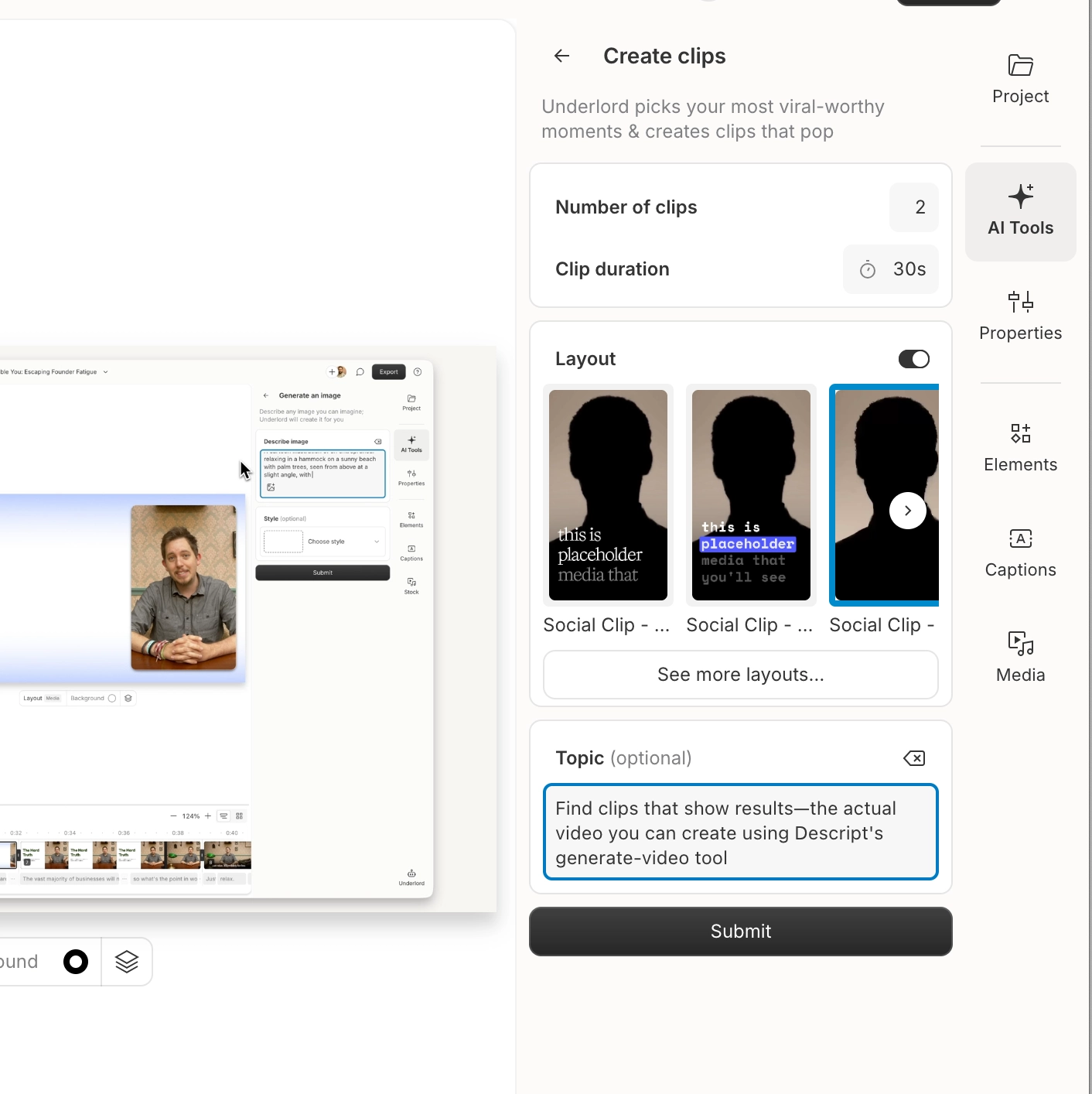

You can choose different caption styles and layouts, tell Underlord how many clips you want, and how long you want them to be. Plus give it more context to get better results.

Step 4: Review the clips Underlord creates for you

Underlord will create your clips and set them up for you.. When it’s done you’ll see little cards for each of the clips, containing:

  • A title
  • A short description
  • A virality rating (yes, Underlord can assess how likely your clip is to go viral; it just knows)

Now, click on any one of the little cards...
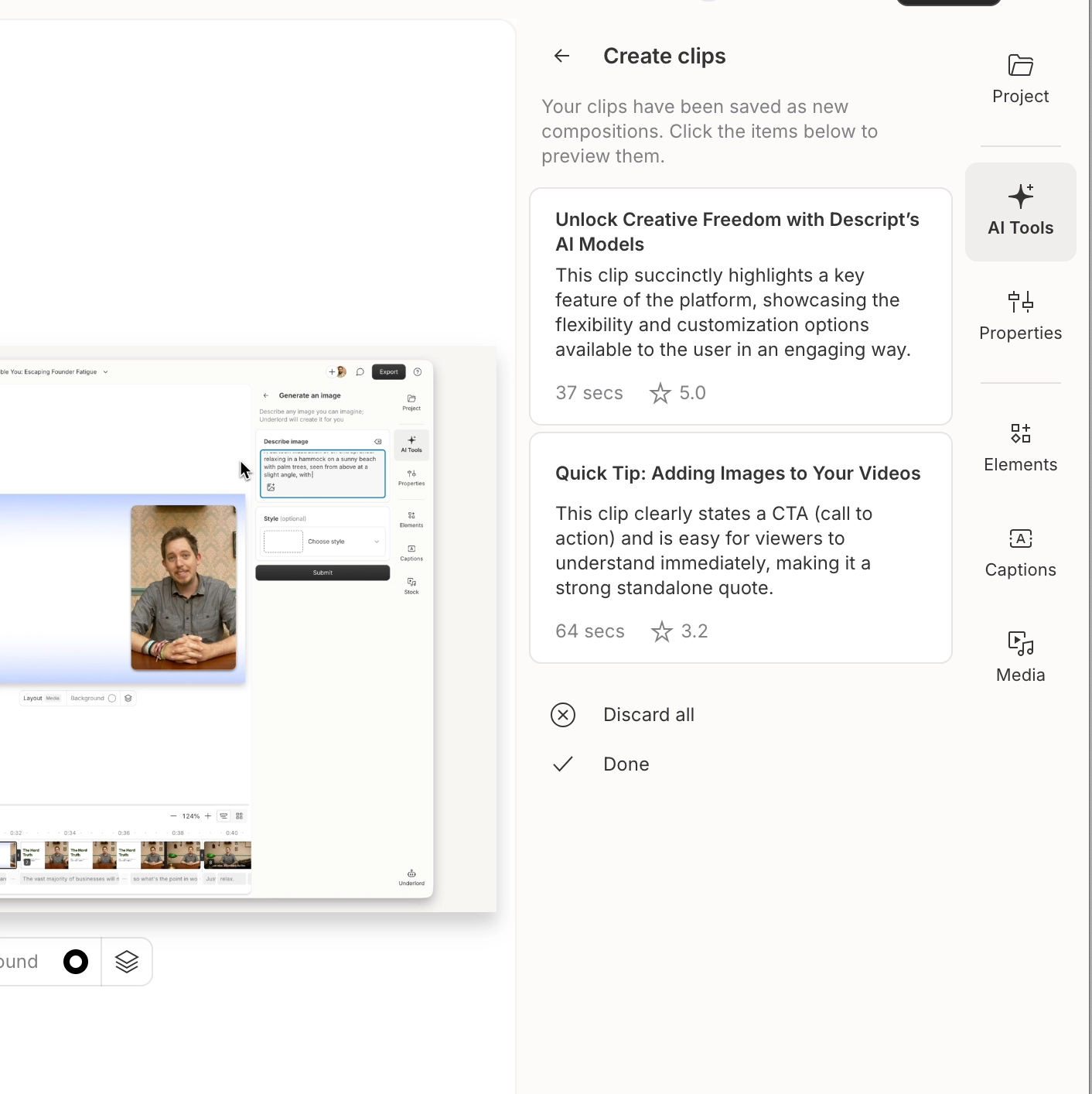

Underlord gives you a title, description, and virality rating for each of the clips it creates. Just click on one to edit, add finishing touches, or publish.

Step 5: Make tweaks—or don’t

Underlord has set up each of your clips as a new composition. Click on one to dive into the composition, where you can adjust captions, swap layouts, add branding, or tweak the transcript.

Or you can do absolutely nothing and hit Publish to export your clip as-is.
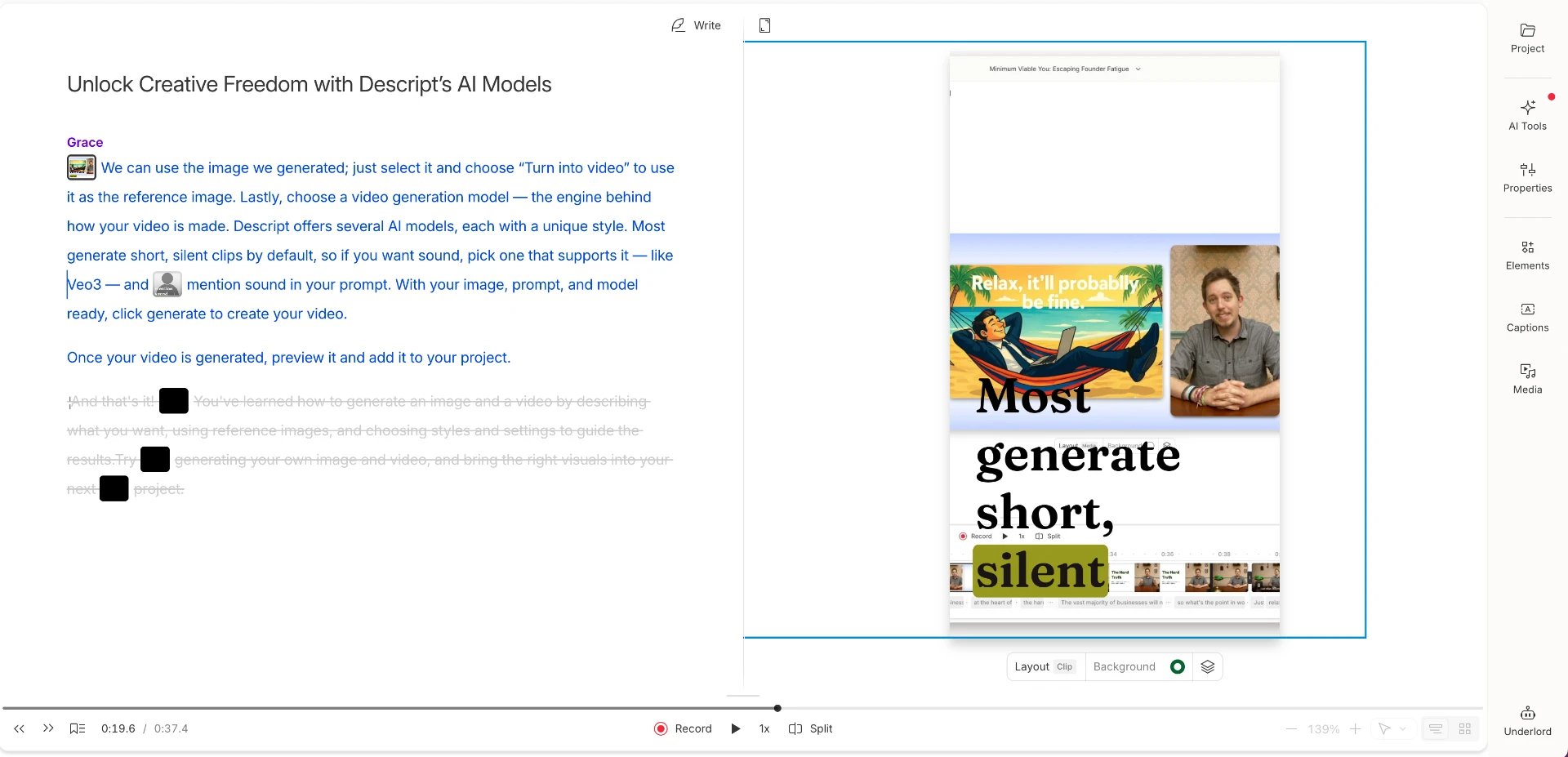

You can edit your clip by editing the text. Or drag and drop to add a logo. Or make any edits you need to make before you publish. Or just publish.

Step 6: Post everywhere your audience hangs out

The finishing move. Export your clips for YouTube Shorts, Instagram Reels, TikTok, or LinkedIn (the place where emotional nuance goes to die, but your podcast might thrive).

Each clip becomes a tiny gateway into your show—a conversation starter, a reason for someone to follow you, a moment they remember and share.

And because the whole workflow takes minutes instead of hours, you can post more often without feeling like you’ve taken a second job as your own intern.

Share this article

Get free recording and editing tips delivered to your inbox

Thank you for subscribing!
Oops! Something went wrong while submitting the form.
By subscribing, you consent to receiving marketing emails. You may unsubscribe at any time.

Related articles

Go deeper, make better video

Descript is an all-in-one editing platform that makes creating video as easy as editing text, with AI tools that reduce the drudgery so you can focus on making something good.

Try it free ->

How to turn your podcast into scroll-stopping video clips

With Descript, you can social media clips to promote your podcast in minutes

Here’s the hard truth about podcasting: if you want people to listen to your show, you need to give them something to see.

The best way to promote a podcast is with video clips. YouTube, Instagram, TikTok, LinkedIn. The places where people go to “just check something quickly” and emerge three hours later, wondering why they’re watching some dude lecture them about ancient grains.

But making video clips requires two things most podcasters don’t have an abundance of: time and video skills.

That tension—knowing clips matter, but also knowing your Sunday is already booked solid with laundry, sleep, and generalized existential dread—is the whole reason Descript exists. And it’s why Underlord, Descript’s AI co-editor, now makes clip creation something you can do fast, with the skills you already have.

Here’s how to turn your podcast into a reliable pipeline of social-ready videos, without sacrificing your evenings, weekends, or sanity.

Why video clips matter more than ever

A few reasons, all annoying but true:

  • Discovery now happens on video platforms. YouTube is the world’s second-largest search engine. Instagram and TikTok’s algorithms happily surface short highlights to people who have never heard of you—and maybe never would have.
  • People trust faces and voices. A 20-second video clip builds a parasocial relationship faster than a 20-minute audio segment. Fair or not, that’s how audiences are built.
  • The algorithms like quantity. Showing up once a week is fine. Showing up every day (or close to it) is categorically better.

So yes, clips are essential. And yes, you can make them without spending three months learning After Effects.

Step 1: Pull your episode into Descript

Bring your full podcast recording—audio-only or video—into a Descript project. Underlord can work with either. (Pro tip: you can record directly into Descript; it has recorders for every kind of podcast. Then you can save yourself all the file-transferring.)

Now take a deep breath, because from here the heavy lifting is handled by tools made of code, not your own tired hands.

Step 2: Tell Underlord to create your clips

Descript’s AI co-editor, Underlord, can find the moments that will make the clips, then set them up for publishing in whichever format you want. You can kick that off in either of two ways.

Under AI tools in the right sidebar, find the Repurpose section and click Create clips. That’s it. No timeline scrubbing. No detective work. No replaying the same 12 seconds over and over trying to decide if you're being “compelling” or just “loud.”

Or, just click on Underlord in the bottom right corner, and tell it to create your clips by typing in the box. Give it as much direction as you want, then let it cook.

Underlord reads your episode, identifies strong moment candidates, and builds clips around them automatically.


Click Create Clips—Underlord will get to work finding them and setting them up for you.

Step 3: Pick your settings

Before Underlord goes off to do its thing, you get a few choices—these are the .

You can adjust:

  • Number of clips: the default is 5
  • Duration: how long you want it to be; probably somewhere between 30 and 60 seconds
  • Layout: vertical or horizontal, but you can also choose from various caption styles; if you’re making an interview show, we’ve got two-camera layouts as well

There’s also an optional prompt for the topic—if your two-hour interview covered a range of stuff and you only want clips on specific topics, just tell Underlord and it will find the best moments on that subject. Or, just tell Underlord who your audience is and what you want to achieve with your clips (get subscribers, drive awareness, etc.). Any context you can provide will improve your results.

Then you click Submit.


You can choose different caption styles and layouts, tell Underlord how many clips you want, and how long you want them to be. Plus give it more context to get better results.

Step 4: Review the clips Underlord creates for you

Underlord will create your clips and set them up for you.. When it’s done you’ll see little cards for each of the clips, containing:

  • A title
  • A short description
  • A virality rating (yes, Underlord can assess how likely your clip is to go viral; it just knows)

Now, click on any one of the little cards...


Underlord gives you a title, description, and virality rating for each of the clips it creates. Just click on one to edit, add finishing touches, or publish.

Step 5: Make tweaks—or don’t

Underlord has set up each of your clips as a new composition. Click on one to dive into the composition, where you can adjust captions, swap layouts, add branding, or tweak the transcript.

Or you can do absolutely nothing and hit Publish to export your clip as-is.


You can edit your clip by editing the text. Or drag and drop to add a logo. Or make any edits you need to make before you publish. Or just publish.

Step 6: Post everywhere your audience hangs out

The finishing move. Export your clips for YouTube Shorts, Instagram Reels, TikTok, or LinkedIn (the place where emotional nuance goes to die, but your podcast might thrive).

Each clip becomes a tiny gateway into your show—a conversation starter, a reason for someone to follow you, a moment they remember and share.

And because the whole workflow takes minutes instead of hours, you can post more often without feeling like you’ve taken a second job as your own intern.

Featured articles:

AI for Creators

How to make AI-generated video

Create pro-quality AI-generated videos that aren't slop. Tips on prompts, styles, and troubleshooting with Descript's AI video generator.

AI for Creators

14 best AI video generator tools: 2025 guide

Compare the 14 best AI video generators of 2025. Find out which tools offer the best features, pricing, and workflow for creators and marketers.

Podcasting

Save your recordings with Descript's AI audio enhancer

Descript’s AI audio enhancer isolates voices from noise or distortion. Get clear sound in one click—whether you're recording on your phone, laptop, or in a busy space.

Video

A video beginner's guide to better on-screen text

Educational video often requires text like key terms and quotes. Here's how to highlight that info without detracting from the visuals.

AI for Creators

6 AI tools to streamline your podcast production

Discover 6 AI tools for seamless podcast production. From transcription to audio cleanup, streamline your process with top-notch automation.

Articles you might find interesting

AI for Creators

The slop-free guide to AI content repurposing

Most AI-repurposed content is obvious and generic. Here's how to repurpose your content without creating slop or exhausting yourself.

AI for Creators

I tested 11 AI image and video generators. Here's what actually works

Complete guide to AI image and video generators. Real testing reveals which models nail text, reference images, & animation—and where to use them.

Related articles:

Share this article

Get started for free →