


Claude connectors are integrations built on the Model Context Protocol that let Claude read from and act inside the apps you already use.
Most connector lists cover documents and project tools. This one covers the connectors that support audio and video for teams whose files are recordings rather than text.
Turn on a handful of Claude connectors, and Claude gets very good at finding a document, checking your calendar, or digging through Slack. That is useful. But your actual work may still be sitting in a 90-minute recording.
That gap gets lost in most connector lists, where the same productivity apps tend to appear again and again.
For video and podcast teams, the more useful distinction is between connectors that fetch information and connectors that can move work forward.
This article focuses on the media connectors that can move the work forward, along with the supporting tools that help a recording get from source file to finished work.
What is a Claude connector?
A Claude connector is a Model Context Protocol server that Claude can call during a conversation, letting it read data or take actions in another service without you leaving the chat.
MCP provides the shared protocol underneath that connection, while the connector is the packaged way you add it to Claude.
For the full category explanation, see our guide to MCP connectors or the Model Context Protocol specification.
How Claude connectors benefit video and podcast teams
Most popular connector roundups sort toward general office work.
You get storage, email, project management, documents, and messaging. All useful. None of them necessarily help when the thing you need Claude to work on is an hour of recorded conversation.
A producer can connect Drive and Slack, ask Claude to summarize a brief, and reasonably conclude that connectors are mostly a better way to fetch context.
They can do more than that.
Some Claude connectors can take actions in the services behind the conversation.
Anthropic’s current connector experience includes tools for creating issues, sending messages, managing files, working with creative software, and performing other service-specific actions.
For video and podcast teams, that creates a more useful question than “Which connectors are popular?”
Which connectors can help finish the work around a recording?
The Claude connectors that actually touch media
This list is ranked for video and podcast teams, not for every Claude user on earth. Storage, scheduling, transcript access, design, and review all matter because producing media involves more than the edit itself.
Descript: for actually working on the recording
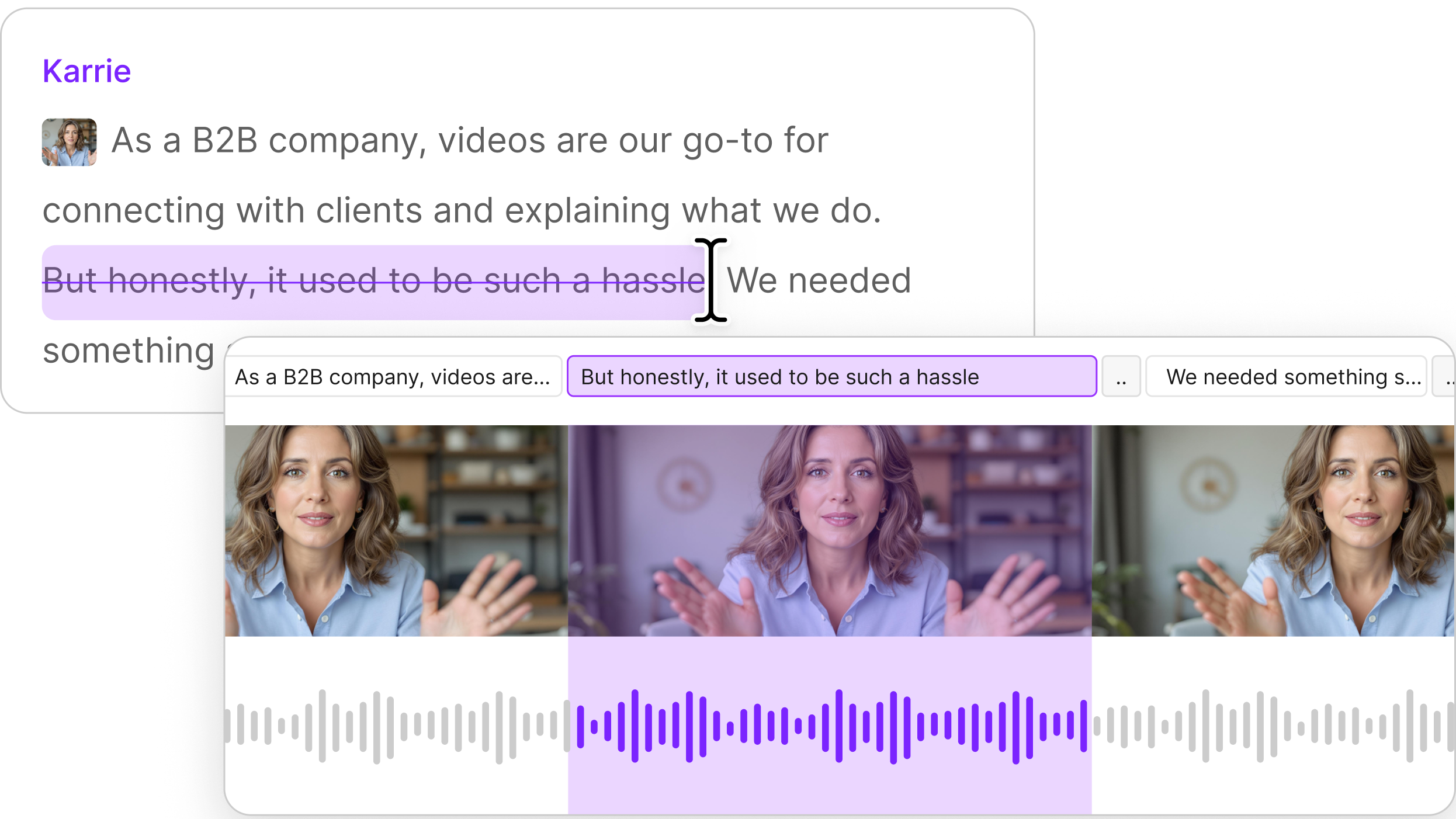
The Descript connector is a remote MCP server that works with the video and audio projects already in your Descript drive—transcribing, trimming, removing filler words, captioning and publishing—from inside a Claude or ChatGPT conversation, with nothing to upload.
Best at: Moving an existing recording through common editing steps. You can import media, find projects, create highlight reels or scenes, remove filler words or transcript sections, add captions or Studio Sound, and publish a shareable Descript link.
Wrongly expected to do: Generate AI images, AI video, AI speech, avatars, dubbing, voice cloning, rerecording, or speaker assignment through Claude.
Verdict: If your workflow starts with recorded audio or video, this is the connector most directly aimed at the file itself.
Disclosure: Descript publishes this article and operates the Descript connector.
Adobe for creativity: for deeper creative-tool work
Anthropic’s Adobe for creativity connector brings Claude into Creative Cloud workflows through more than 50 tools across apps including Premiere, Photoshop, and Express.
Best at: Creative and visual production work already happening in Adobe.
Wrongly expected to do: Replace a transcript-first podcast workflow or become your media library.
Verdict: A strong fit when your team already finishes visual work in Adobe and wants Claude closer to those tools.
Fireflies: for transcript retrieval and meeting insight
The Fireflies connector gives Claude read access to meeting transcripts and summaries, making it useful for finding decisions, concerns, quotes, and recurring themes across recorded conversations.
Best at: Searching transcript archives without manually opening meeting after meeting.
Wrongly expected to do: Edit the original recording. The Claude directory listing indicates that the connector is read-only.
Verdict: Useful when the recording is primarily a source of information rather than a piece of media you need to edit.
Google Drive: for finding the files around the file
Claude’s Google Workspace connection can work with Drive documents and files alongside Gmail and Calendar. Anthropic notes that Claude extracts text content from Drive files rather than treating Drive as a media editor.
Best at: Finding briefs, scripts, research, run-of-show documents, and other production material.
Wrongly expected to do: Edit the video or podcast simply because the source file lives in Drive.
Verdict: Excellent supporting infrastructure. Storage is not editing.
Box: for shared asset libraries
Box operates a hosted MCP server with tools for searching files, uploading content, creating folders, and working with comments and other Box features through OAuth-authorized access.
Best at: Finding and managing media-adjacent assets in a large shared content library.
Wrongly expected to do: Make creative changes to the audio or video inside those files.
Verdict: Most useful when the hard part is finding, organizing, and reviewing assets before or after the edit.
Canva: for visual assets
Canva’s MCP tools can connect compatible assistants, including Claude, to design workflows and assets. Its current MCP documentation includes tools for working with designs and design content.
Best at: Visual deliverables around the recording, such as social graphics and other design assets.
Wrongly expected to do: Handle transcript-based podcast cleanup or edit spoken content.
Verdict: A useful companion when the recording needs visual packaging, not audio surgery.
Slack: for review and production context
Claude’s Slack connector can bring team conversations into the same workflow and can support actions such as drafting and sending messages.
Best at: Finding review notes and putting the next update back into the channel where your team will actually see it.
Wrongly expected to do: Become the place where the media itself is managed.
Verdict: Good connective tissue between the people doing the work. Less useful as the workbench.
Google Calendar: for getting everyone in the recording
Claude’s Google Workspace connectors can manage Calendar alongside Drive and Gmail, and Google also provides an MCP server for Calendar actions.
Best at: Scheduling interviews, podcast guests, recording sessions, and review meetings.
Wrongly expected to do: Anything to the recording once the meeting is over.
Verdict: Not glamorous. Still part of making a podcast.
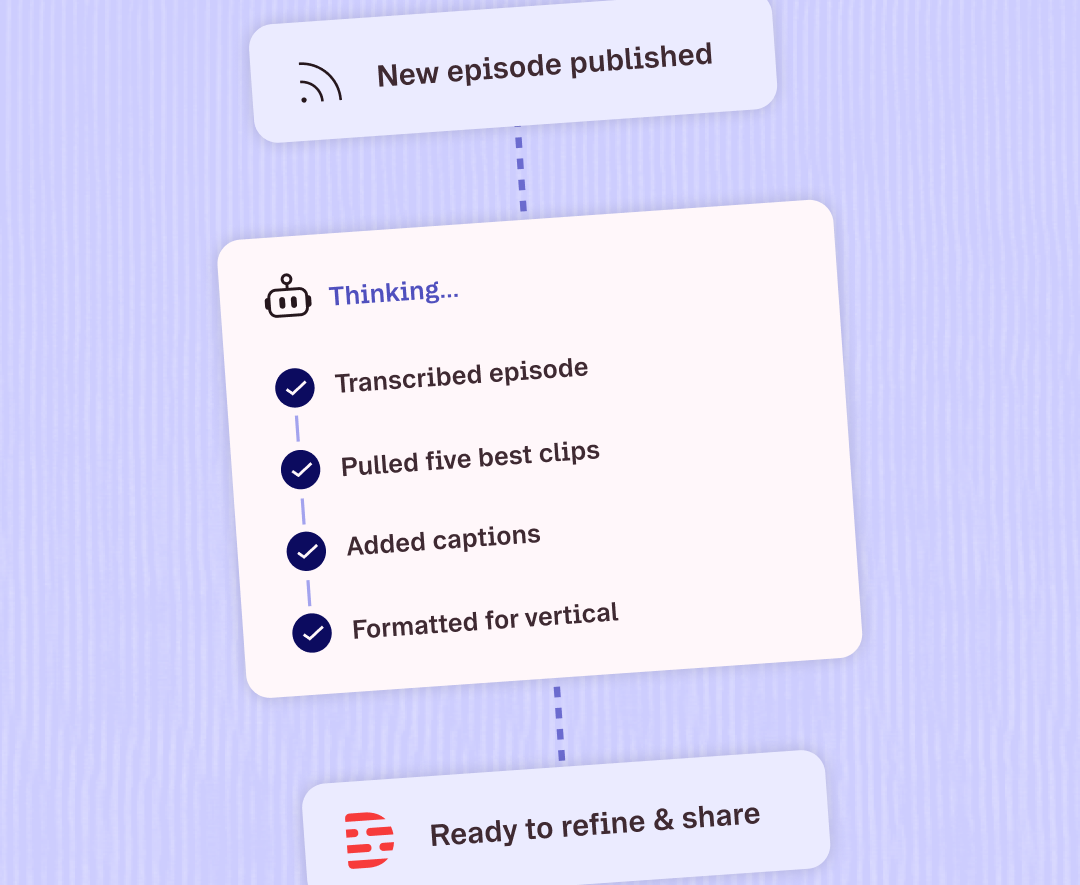
Three Claude connector workflows to enhance video production
The interesting part starts when connectors work together. Here are three media workflows where each tool has a clear job.
1. Turn a finished recording into social cuts
- Find the recording in Descript. Ask Claude to locate the relevant project or import the media.
- Create the cut. Use the Descript connector to create a highlight reel or scenes from the recording.
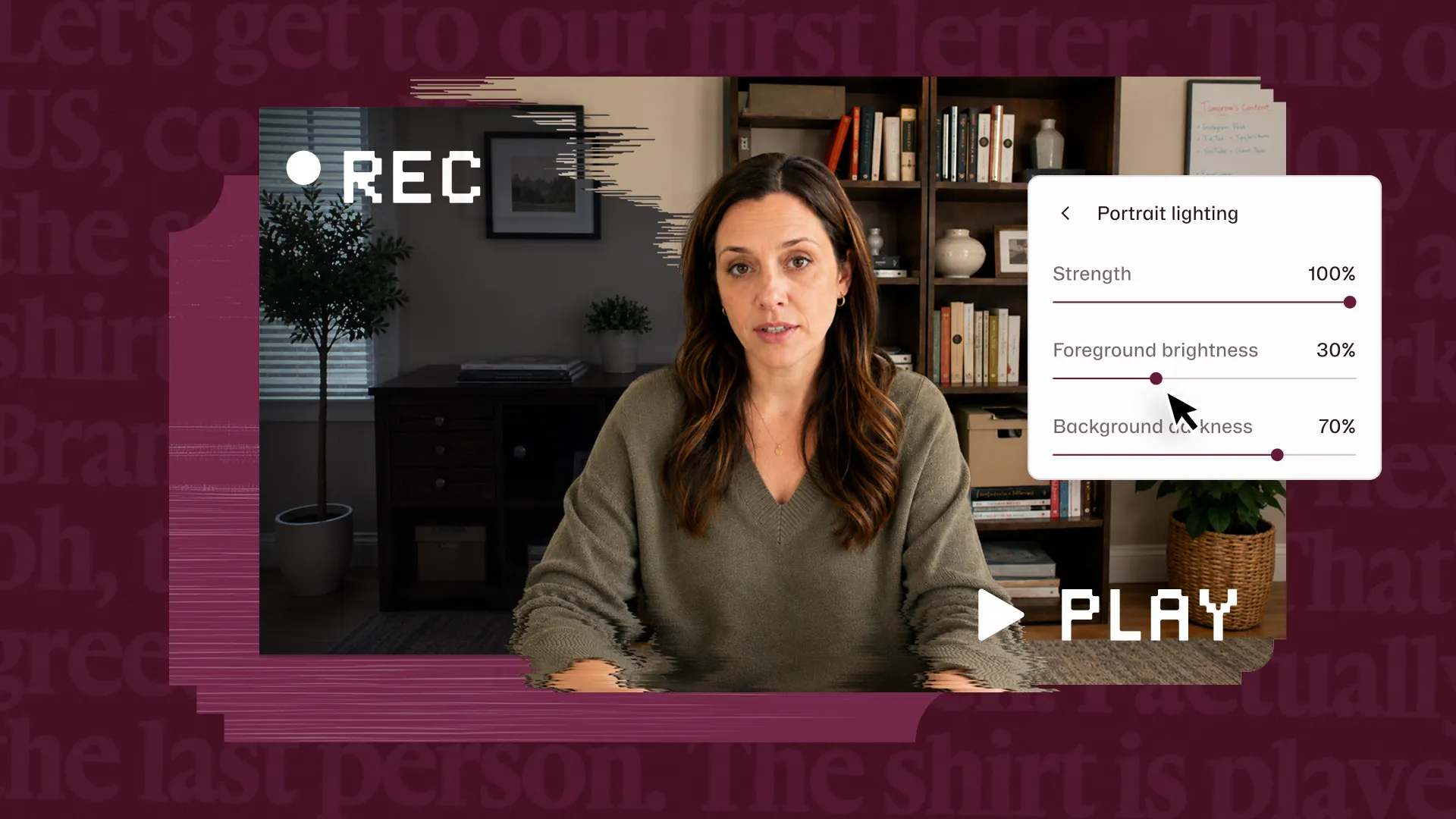
- Finish the basics. Remove filler words where appropriate, apply Studio Sound, and add captions.
- Publish for review. Publish the result to a shareable Descript web link.
- Send it to the team. Use Slack to post the review link and context in the right channel.
If you want more control over the final visual edit, open the project in Descript’s video editor.
2. Run a caption and transcript-review pass across a back catalog
- Identify the projects. Ask Claude to find recordings in the relevant Descript folder or for the specified date range.
- Open the compositions. Narrow the request to the episodes or videos you want to review.
- Add captions. Apply captions to the selected projects.
- Export the transcripts. Pull out the transcript files you need for editorial review or archiving.
- Do the visual check in Descript. Captions still need human eyes when placement, timing, or visual context matters.
For workflows that need more repeatable programmatic automation, the Descript API is the better fit.
3. Turn a recording transcript into a brief or show notes
- Find the episode in Descript.
- Export the transcript so Claude has the spoken material to work from.
- Pull related context from Google Drive, such as the original brief, guest bio, or campaign notes.
- Ask Claude to draft the show notes or a content brief based on those sources.
- Save or share the result in the service your team already uses.
This is where connectors start to make more sense as a system. The recording does not have to become a dead end between the editing tool and everything that comes next.
Limitations for Claude connectors
Connectors operate within a conversation, which means some of the work still belongs in the full application. Large files, long-running jobs, and anything that needs careful visual review are the obvious examples.
A connector also cannot invent capabilities the underlying service has not exposed. If a connector can read transcripts but not edit recordings, better prompting will not turn it into an editor.
Permissions matter as well. Anthropic recommends reviewing what a connector can access and only connecting services you trust.
Custom Claude connectors can point to remote MCP servers outside Anthropic’s verified directory, so the operator and requested permissions are worth checking before you click through the OAuth screen.
How to add a connector in Claude for video production
If you are wondering how to use Claude connectors, the directory path is short:
- Open Claude Desktop. Descript specifically requires the desktop app.
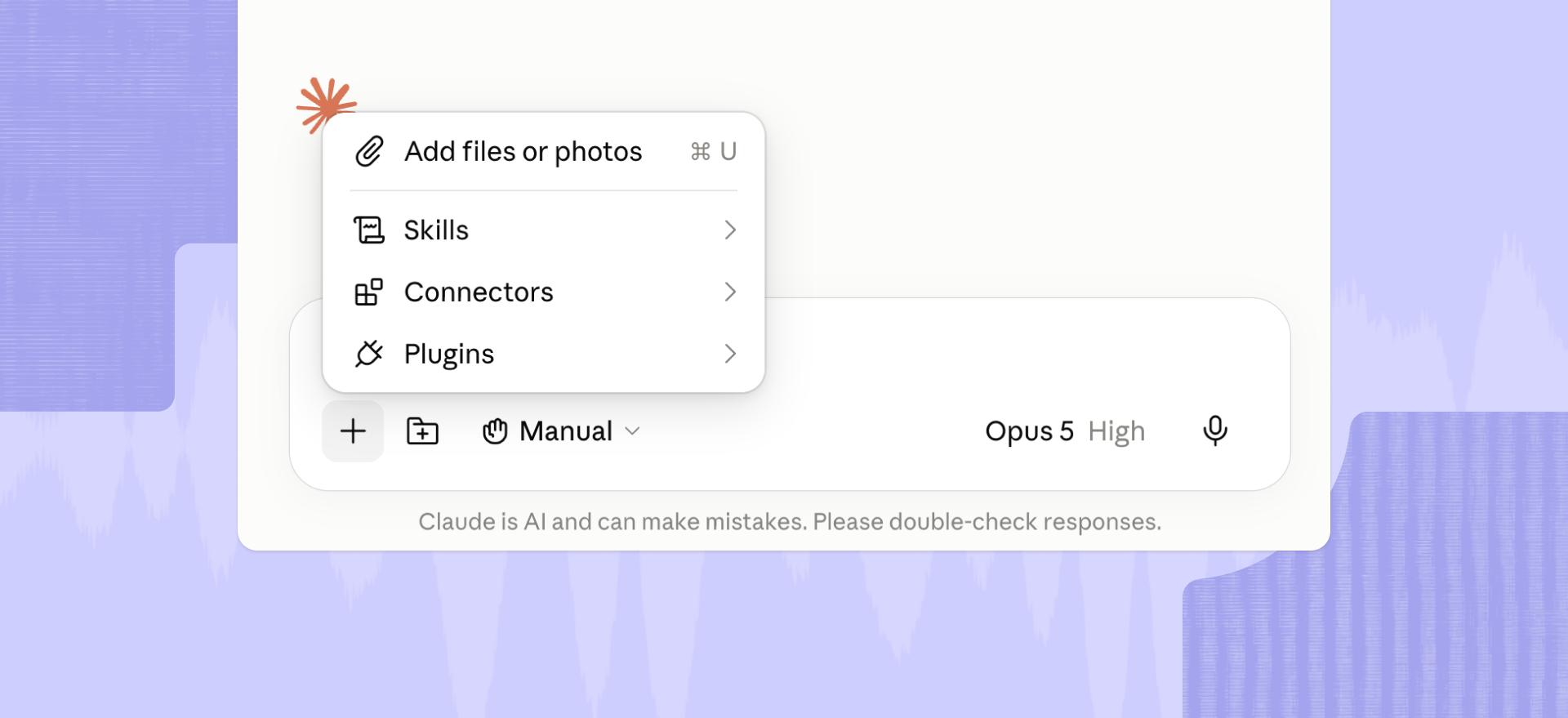
- Go to Customize > Connectors.
- Click the + button and browse the Claude Connectors Directory.
- Search for Descript, then click Connect.
- Sign in to Descript and allow access to the Descript Drive you want Claude to use.
For custom Claude connectors that are not listed in the directory, Claude also provides an Add custom connector option for compatible remote MCP servers.
People sometimes call this a Claude connectors marketplace. Anthropic’s own name is “Connectors Directory”.
If your work involves recordings, choose a connector that does more than just locate the file
The Claude connectors directory will keep filling with tools that can fetch documents, messages, tasks, and data. Those connectors have a job.
For a media team, though, retrieval is only part of the workflow.
If your work lives in recordings, look for connectors that can do something useful after they find the file. Transcribe it. Trim it. Clean it up. Caption it. Turn it into a highlight reel. Move it toward review or publication.
That shortlist is smaller.
You can explore Descript’s integrations to see how recording, editing, publishing, and handoff fit together. And when you need automation beyond conversation, the Descript API offers another path.
FAQ
Can Claude edit video?
Yes, through a connector. Claude cannot edit video on its own, but a connector to a video tool can let it take supported actions on a recording during a conversation.
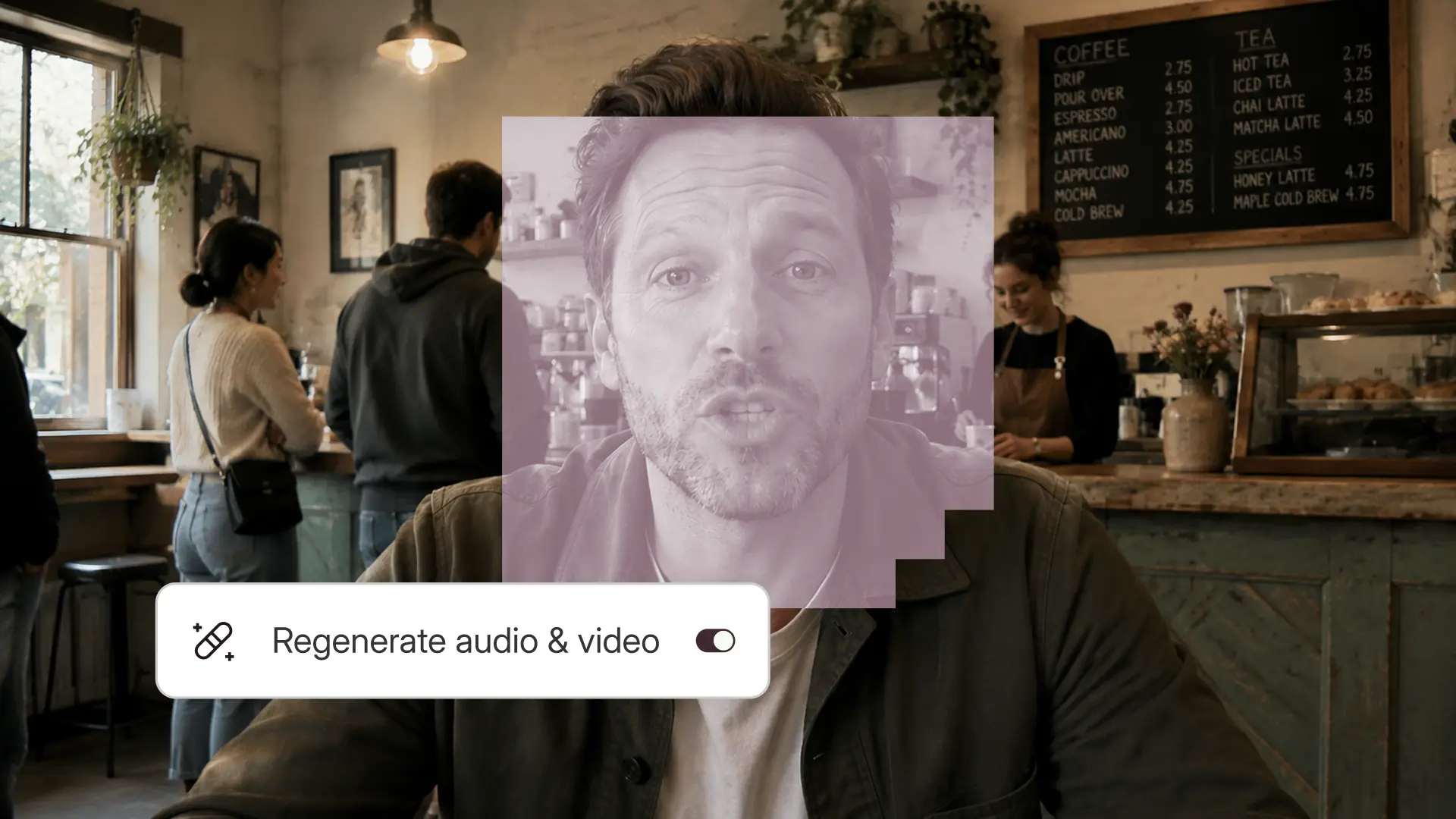
With Descript, those supported actions include importing and transcribing media, trimming content, removing filler words, adding captions or Studio Sound, creating highlight reels or scenes, and publishing a shareable web link.
How many Claude connectors are there?
Claude’s Connectors Directory is a growing catalog of services and verified MCP servers, and Anthropic continues to add new connector and customization options. The exact set changes over time, so the directory itself is the better source than a fixed count in an article.
Most video and podcast teams only need a small subset anyway. The useful question is which connectors match the work around your recordings.
Are Claude connectors free?
Yes, many Claude connector features are available without purchasing a separate Anthropic connector, but access to the underlying service still matters. Anthropic currently makes web connectors available across Claude plans, while individual services can have their own account, plan, usage, or admin requirements.
For example, using Descript through MCP can consume Descript media minutes or AI credits depending on the action.
What is the difference between a Claude connector and an MCP server?
A connector is the packaged way Claude connects to an MCP server or service. An MCP server is the software that exposes data and tools over the Model Context Protocol.
Both rely on the same underlying protocol. “Connector” refers to the user-facing connection and installation experience, not to a different technology.
Can Claude edit podcasts or audio?
Yes, through a connector to an audio editing tool. With Descript connected, Claude can import and transcribe recordings, remove filler words or sections from transcripts, apply Studio Sound, create highlight reels, and publish projects.
How do I connect Descript to Claude?
In Claude, go to Customize > Connectors, search for Descript, and select Connect. Sign in to Descript and approve access to the Descript Drive you want Claude to use.
Does the Descript connector work with ChatGPT too?
Yes. Descript also connects to ChatGPT, where you can import media, work on projects, and publish from a conversation. See our guide to ChatGPT connectors for social teams.
What can the Descript connector actually do in Claude?
The Descript connector can import and transcribe media, find and organize projects, create highlight reels or scenes, remove filler words or transcript sections, add captions or Studio Sound, write scripts, and publish or export supported project content.
Do Claude connectors use my AI credits or media minutes?
Using the Descript connector can use your existing Descript allowances. Media imports use media minutes, while supported AI editing actions can use AI credits.
Are Claude connectors safe? What can they access?
Connector access depends on the permissions you grant. Claude can only use the data and actions exposed by that connector and your account permissions, so review the provider, requested access, and available actions before connecting it.
Do I need the Claude desktop app to use connectors?
No. Remote connectors can be used from Claude on the web or Claude Desktop, and many are also available on mobile. Descript’s current setup supports connecting from either Claude web or the desktop app.
Which Claude connectors are best for podcasters vs. video editors?
Podcasters may prioritize Descript for transcript-based audio editing and Fireflies for transcript retrieval. Video teams may also benefit from Adobe and Canva for visual work. For a broader comparison, see 10 Claude MCP servers, ranked by what they actually get done.