

AI generated video comes from three routes: text to video models, avatar presenters reading a script, and AI editing applied to real footage. The third is the most reliable for anything that has to look like your actual product. Descript covers avatars and script-driven video in one editor.
You can now create just about any image or video you can imagine, just by typing, using an AI video generator like Descript.
First, let’s be clear: this is about ai-generated video that works with your recorded video. As B-roll, backgrounds, animations, and so on. If you want to learn to generate a feature film, or a capybara meme, don’t read any further.
If you’re interested in learning how AI-generated video can enhance explainers, tutorials, product demos, talking-head videos, and other content you’re creating or want to create, you’ve come to the right place.
Here’s we'll teach you to generate AI images, then use them to generate short, on-brand video clips—B-roll, backgrounds, animated titles—the stuff you don’t have the skill, the time, or the money to shoot yourself.
What you’ll learn
- How to make custom images that match your concept and brand
- How to turn those images into video clips (same look, same vibe)
- A tidy workflow for incorporating generative images and video into the video you’re already making
If you’d rather watch than read, we’ve got a concise tutorial, right here.
AI image generations
Why start with an image?
Because style is half the battle. Locking in the palette, composition, and mood first lets you iterate faster and avoid the “why does every clip feel like a different universe?” problem later. Think of the image as your lookbook; the video will follow its lead.
Also, for whatever reason, it just works better.
Part 1 — Generate an image
1. Open the AI Tools panel
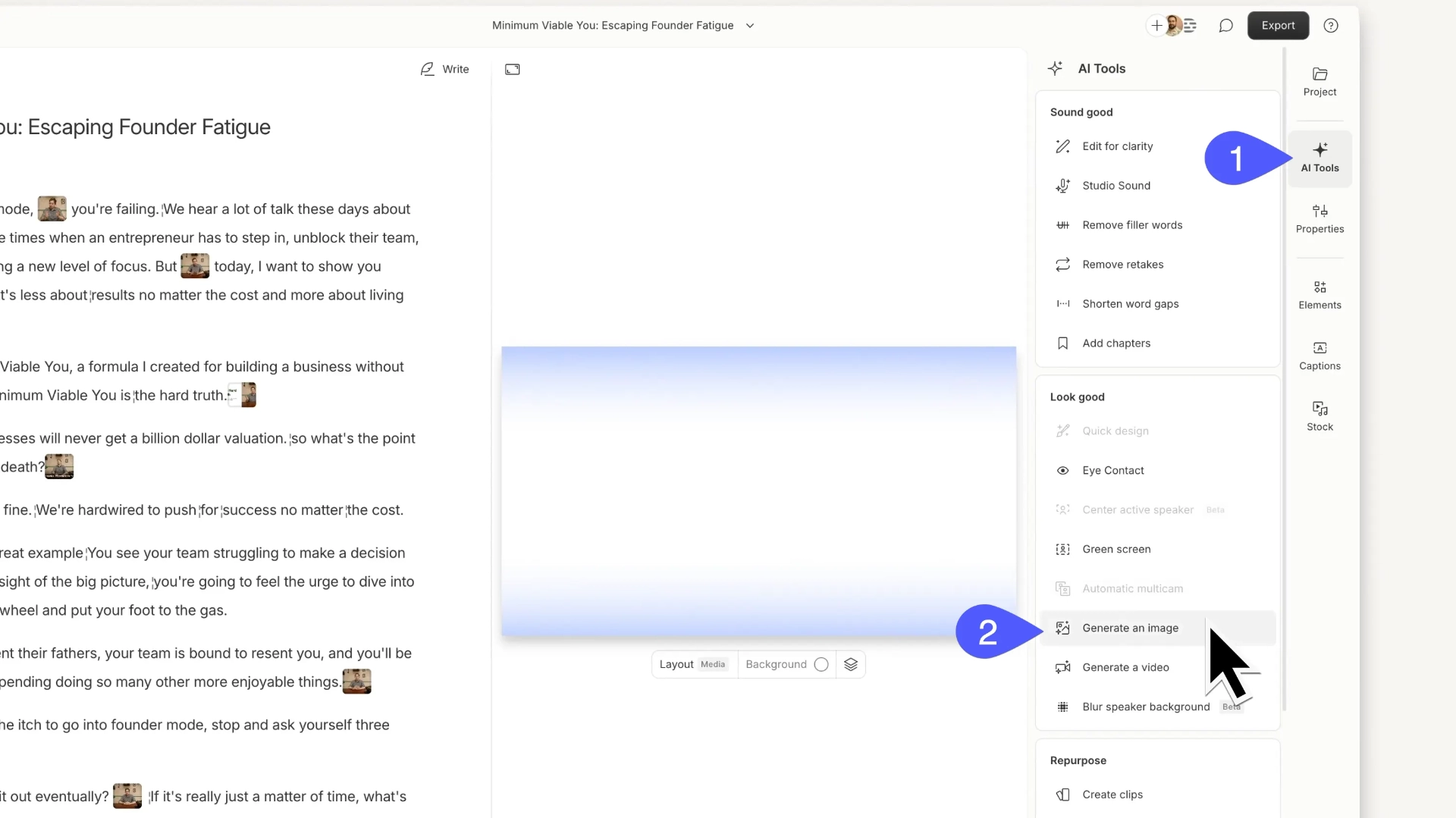
2. In your Descript project, open AI Tools and choose Generate an image. From here there are a few different ways to generate the exact image you want. You’ll need a prompt in any case, so we’ll start there.
3. Describe your image. Now it’s time to write out the prompt describing the image you want. there are three ways to generate the exact image you want:
Generate from text (with a prompt)
Pro tip: you can skip this section and just have Underlord, your AI co-editor in Descript, write a prompt for you. Copy-paste that sucker into Generate an image and away you go.
You want to describe:
- Subject: what’s in frame (“an entrepreneur relaxing in a hammock on a sunny beach surrounded by palm trees”).
- Point of view / camera: where we’re “standing” (“seen from above at a slight angle”).
- Aesthetic: style, lighting, mood (“cartoon illustration; warm orange and turquoise; bright light; friendly, optimistic”)—but see below for some additional ways to define your look.

Choose a curated style
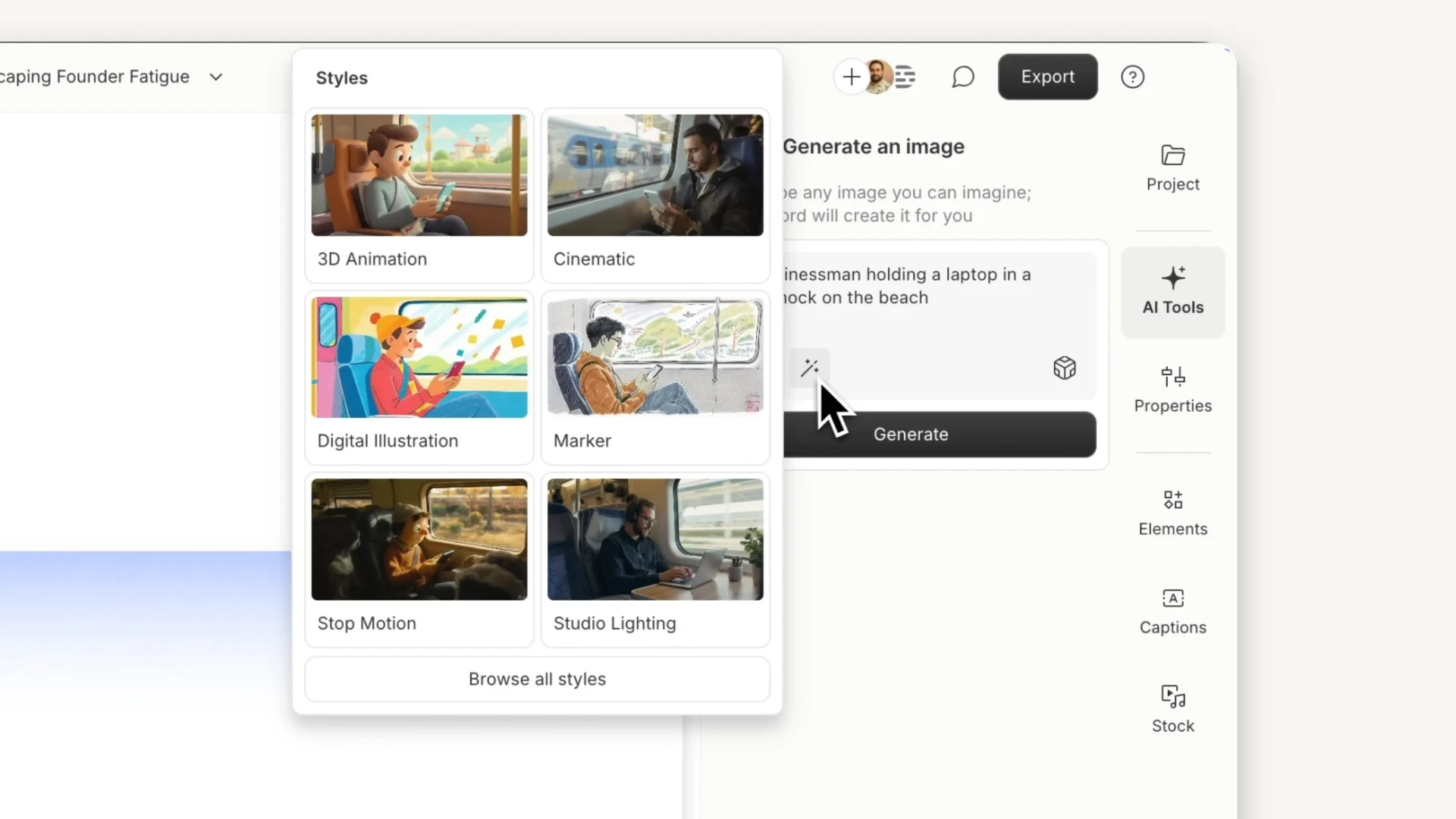
If you want quick, consistent results, or can’t adequately describe the image you want, you can start with a simple subject prompt and apply one of Descript’s curated styles. They’re all designer-created and tuned for quality and repeatability. If you’ll be generating multiple videos and want visual continuity across the set, curated styles are your best bet.
Use a reference image
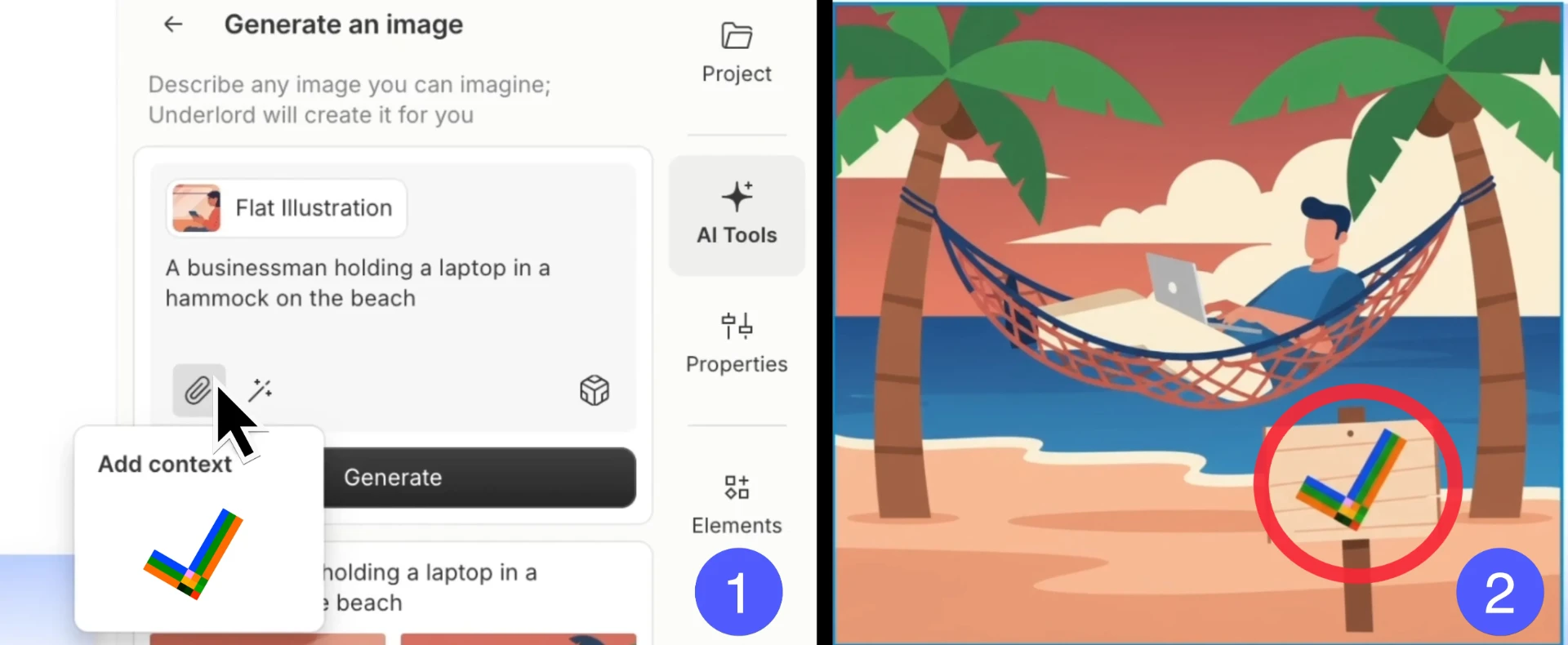
Have a mascot, product angle, or logo that must appear? Upload it as a reference and say exactly how it should be used (“place the logo on the parasol; character wears the teal hoodie”). References are your brand guardrails.
Pro tip: With references, describe relationship and hierarchy: foreground vs background, size relative to frame, and any “never” rules (never warp the logo; never crop the product label).
4. Choose a model for extra control (optional)
One nice thing about Descript: you’ve got access to all the latest image and video models, so you can choose the one that best fits your content. Here’s a breakdown of the different models and what they’re best at. Pick what fits your project and audience. (Sound is optional; you can also layer your own.)
5. Generate your video and pick your favorite

However you choose to describe your image, when you’re ready, all you need to do is click Generate and kick your feet up.
Descript will give you four options. Just click on the plus icon over the image you like to drop right into your project.
Part 2 — Turn that image into an AI-generated video (same look, now moving)
1. Select your image, get a video
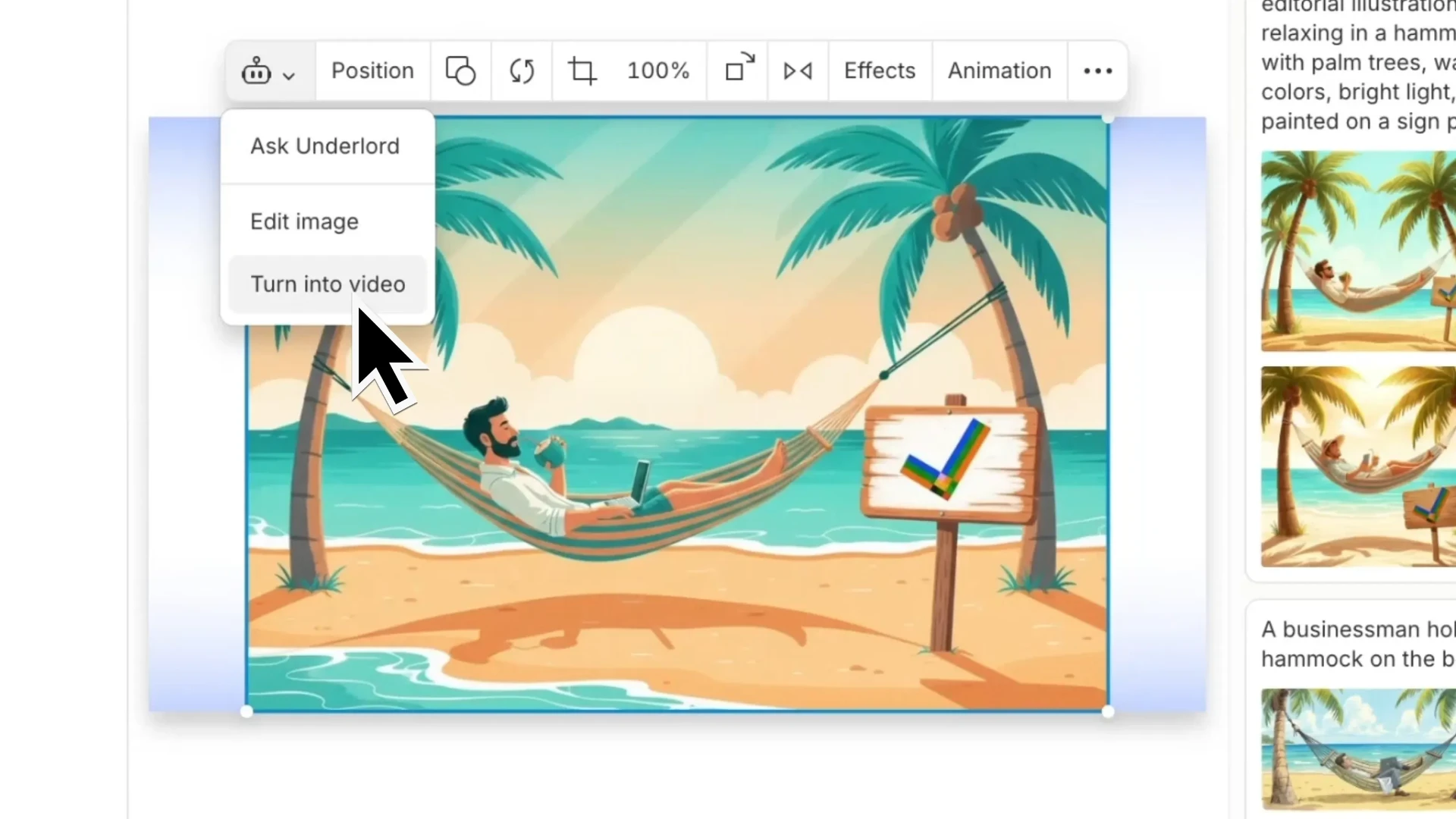
In the Scene Editor, select your image, click the Underlord icon in the toolbar, then choose Turn into video. This hands your locked-in look to the video generator.
2. Describe the action and camera motion
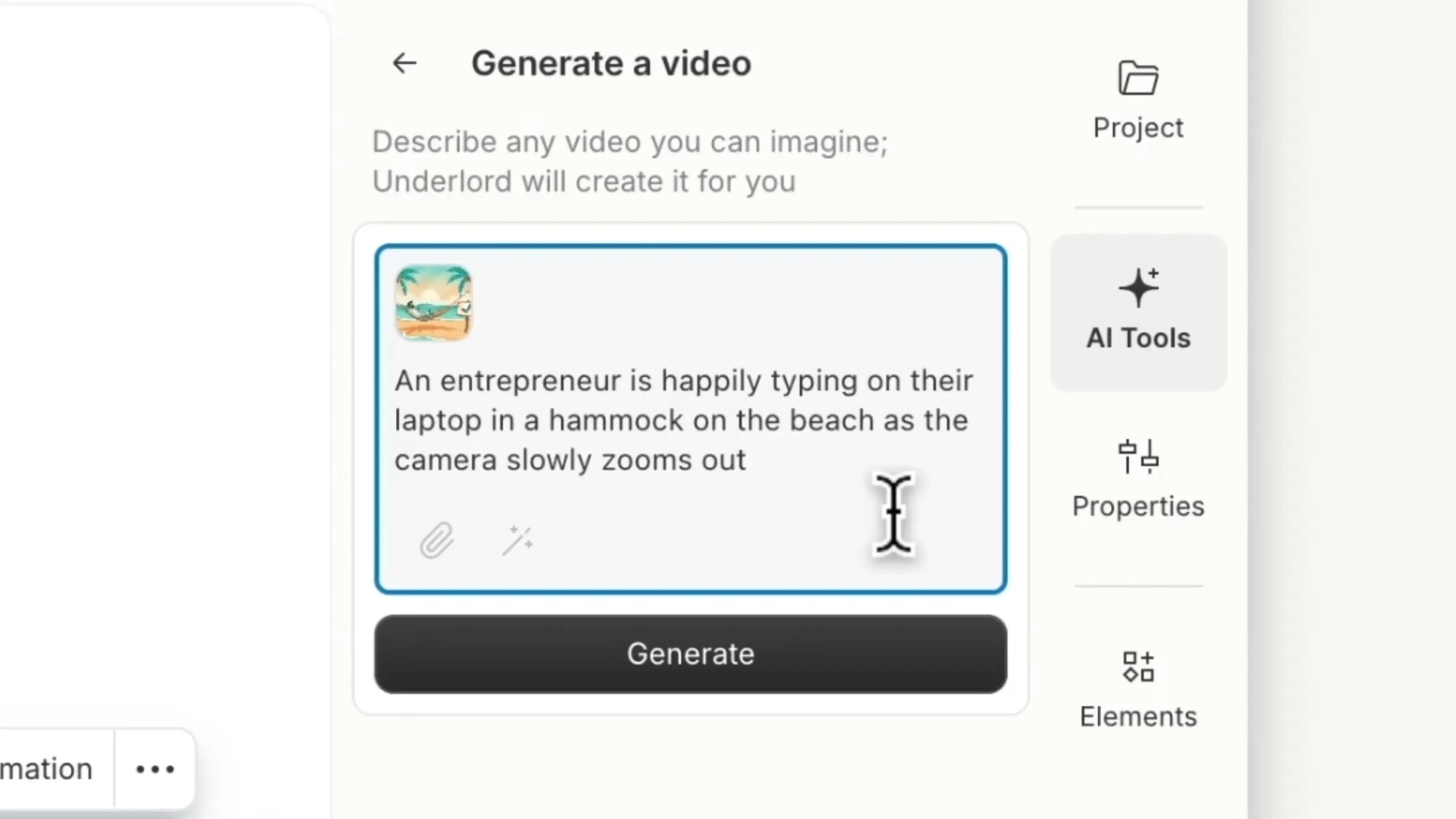
Good prompts separate subject action from camera motion. For example:
- Action: “The entrepreneur happily types on a laptop in the hammock on the beach”
- Camera: “the camera slowly zooms out.”
But also, just have Underlord write your prompts.
3. Generate
As with any AI video generator, it can take a few minutes.
4. Preview & replace layer
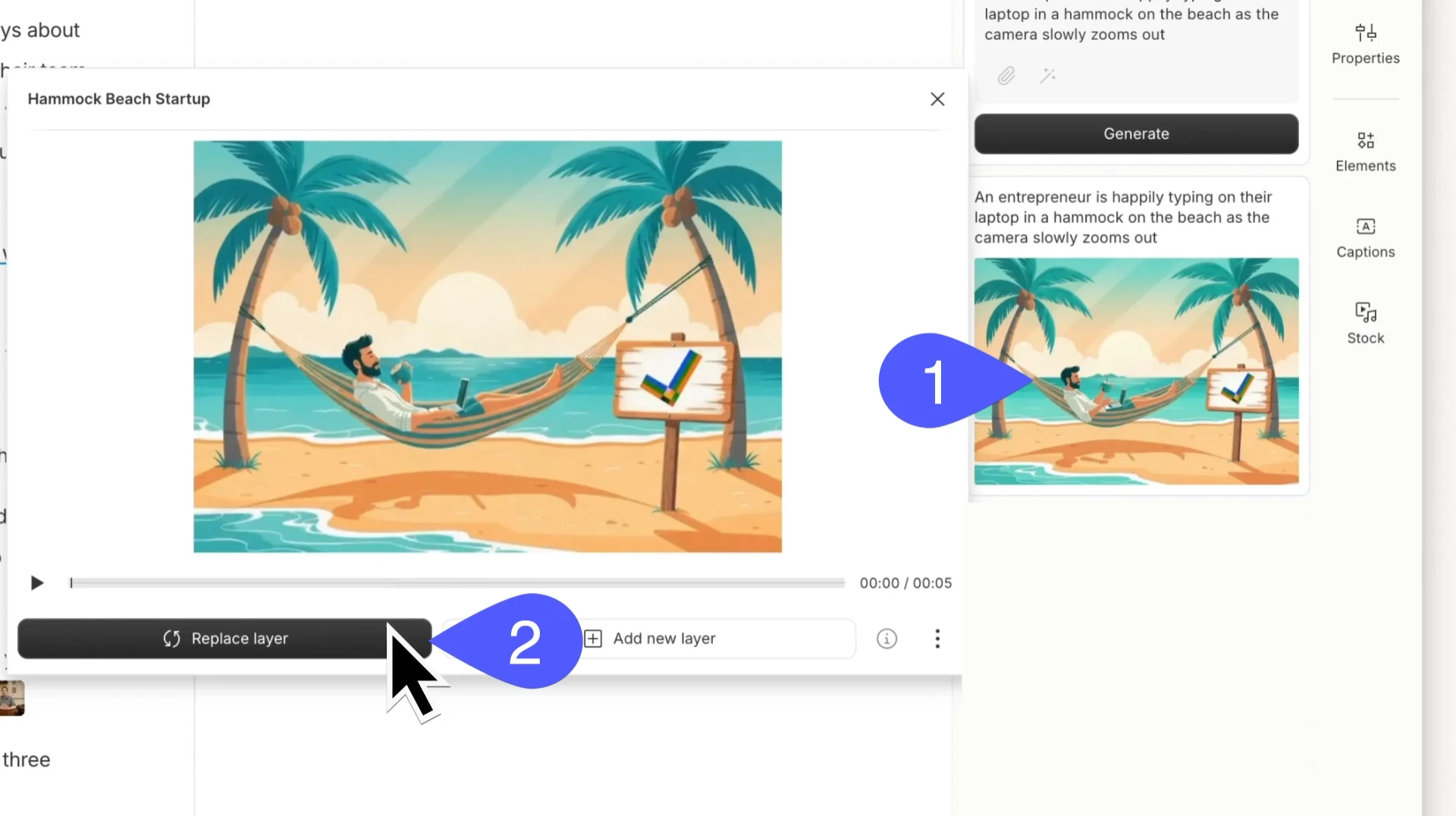
Click the thumbnail to preview. Like it? Click Replace layer to swap the still image for your new video in exactly the same spot. (If you hate it, adjust your prompt or choose a new model and repeat the steps above.)
Craft notes: how to get great results fast
- Talk to it like a collaborator. Give the AI goals, not just ingredients (“we need cheerful, brand-safe beach B-roll that doesn’t distract from the on-screen tutorial”).
- Pour on the context. Platform, audience, aspect ratio, where the clip lives in your edit—tell AI what problem the shot is solving. The more it knows, the closer it will get.
- Iterate deliberately. Change one variable at a time (palette, camera, density of detail) so you can learn what’s working.
- Save your prompts. When you find a look you love, copy the prompt and save it somewhere.
- Use references for brand fidelity. Logos, product silhouettes, signature colors—all fair game. (We’re not trying to invent your brand from scratch every Tuesday.)
Common problems (and easy fixes)
The image is gorgeous but the video feels busy
Reduce camera motion; specify fewer moving elements; ask for “gentle parallax” rather than “dynamic sweep.”
My logo looks… interpretive (i.e., bad)
Re-upload a high-res transparent PNG; add “maintain true geometry; do not distort” to the prompt; position it with precise language (“top-right, 8% of width”).
Skin tones / lighting got weird between shots.
Lock lighting keywords (“golden hour, warm key, soft fill, no green cast”) and keep them consistent across prompts.
The video is getting cut off
Call out your aspect ratio and safe zone specifics in the prompt; reduce fine detail at the edges; choose slower motion for vertical.
Sample prompts you can steal
Here are the prompts we used to make one of the videos in this Short, starting with an image, plus the models we picked. Underlord co-wrote both prompts, by the way.
Image (Nano Banana)
“Wide shot of an adult facing the camera while walking forward through a bright, modern airport concourse, holding a to-go coffee in one hand and pulling a rolling suitcase with the other. Large windows, skylights, and overhead signage frame the space”
Video (Veo3)
"Wide tracking shot inside a bright, modern airport concourse. An adult walks toward the camera, holding a to-go coffee in one hand and pulling a rolling suitcase with the other. The camera moves backward smoothly, keeping the subject centered in frame as they walk. Large windows, skylights, and overhead signage frame the space. Soft, natural light fills the terminal, and background travelers and plants add depth without distracting from the main subject."
Where to use generative video
You can of course generate a video for anything you want. But we’ve found it exceptionally helpful for these four jobs:
- B-roll that precisely matches your content. When you need video that shows your product or logo, or that just depicts something you can’t find in stock.
- Animated titles & intro. Set up your title, logo, whatever, then ask AI to animate it. So, so much easier than doing it yourself
- Background loops. Another instance where you might want something specific that you can’t find in B-roll. Your office, a particular block in your city, whatever.
- Social clips. Got an audio podcast? A talking-head video with nothing visually arresting enough for the social media scrum? Generate it.
FAQ
Can I mix these with recorded footage?
Absolutely. Treat generated clips like any other layer—stack with screen recordings, talking heads, or motion graphics. This is where generated video becomes truly powerful—as a supplement to recorded video.
What about audio?
Some models can generate it; often, you’ll get better control by adding your own music/SFX in the edit. Keep B-roll ambience subtle.
Is this only for cartoons/illustrations?
Nope. The same workflow works for stylized realism, product renders, or abstract motion. The key is a tight prompt + consistent style cues.
How long can the clips be?
It varies by model. Some can go up to 8 seconds, some up to 10.